
Create scannable, safer QR codes with KrobClick
A QR readable on screen may fail in print, and a readable image may point to the wrong site. This guide separates image creation, data validation, and destination verification before distribution.
QR Code stores information, does not guarantee the destination.
A QR code stores data in a pattern a reader can decode. For a link QR, that data is a URL, not a copy of the website. If the site closes, the page changes, or its account is compromised, the image may remain readable while the destination differs from when it was created. Check both the embedded text and the actual destination.
KrobClick’s static QR codes embed data directly in the image without using our redirect service. They have no expiry imposed by the generator, but the URL in an existing image cannot be edited after distribution. To change the data, create and distribute a new image. These are not QR codes with editable destinations.
Keep links as short as necessary and check domain ownership
Use the actual public destination URL, such as the tools index, not a page requiring your account. Open it as a recipient first. Check spelling, domain, and absence of secret parameters or personal data. HTTP/HTTPS format validation does not establish trustworthiness.
Short links can create less dense patterns than long links, but add a provider dependency and hide the destination. Do not judge by length alone. The FTC recommends checking links and being wary of QRs that lead to fraudulent websites. especially messages urging payment or login credentials
Create and download with KrobClick, step by step
To help recipients connect to a network, read the Wi-Fi QR guide before choosing the data type
- Open QR Designer and select URL under “Content type.”
- Paste the URL and the preview will appear automatically. Open “Show encoded data” and check that the domain and path match your intended link.
- Choose a resolution of 4×, 8×, 12× or 16×. Check the pixel dimensions below the preview and choose a format your software supports.
- Download and keep the file, then use QR reader to read the saved file again before importing it into a document or layout program
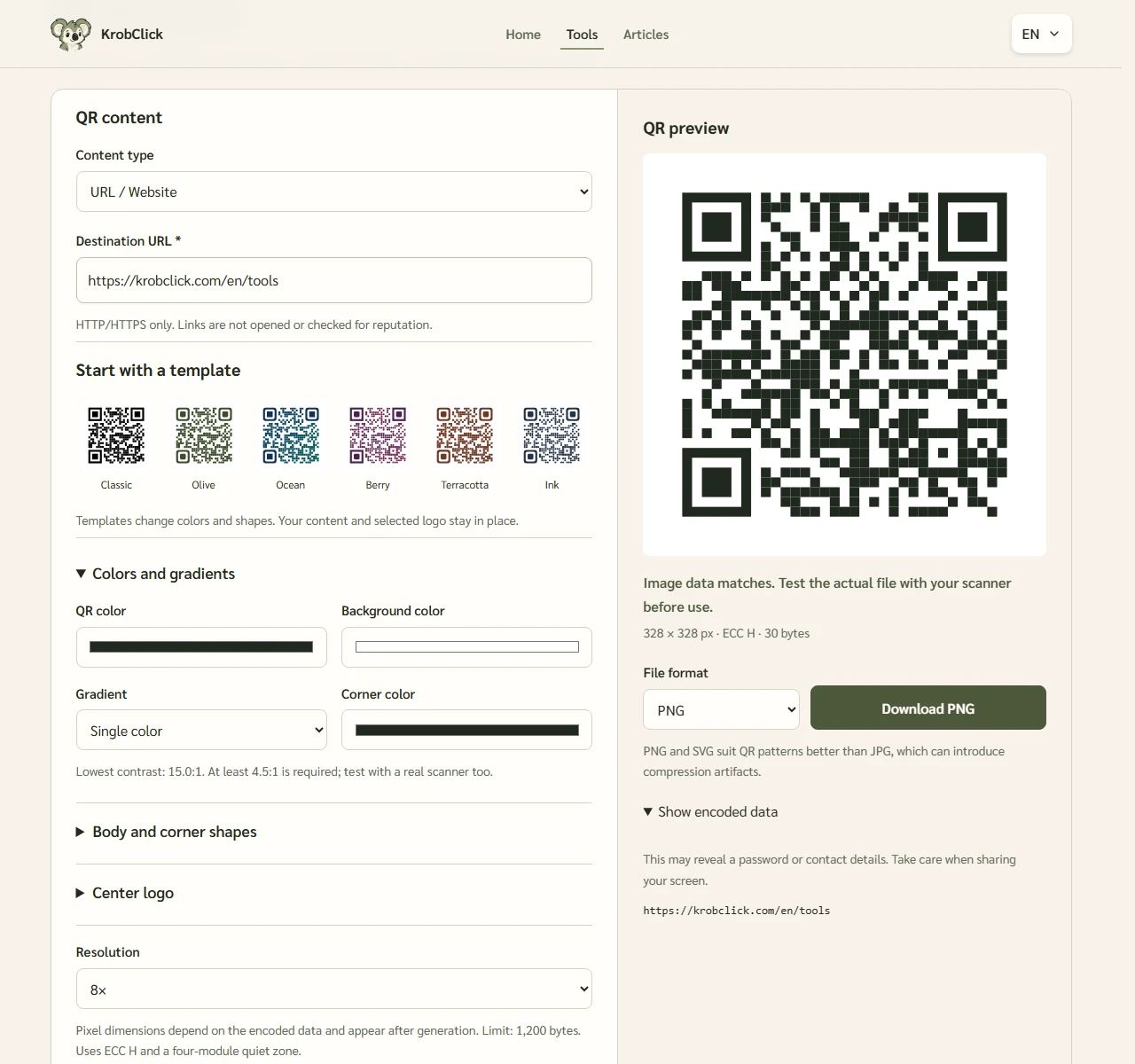
Choose a file and preserve the quiet zone around the QR code
PNG suits sharp-edged QR patterns and common software; SVG suits layout software supporting vector scaling. Check imports for unintended low-resolution rasterization. JPEG is lossy and may create edge artifacts, so it is not the first choice for small printed QR codes even when offered.
Each small square is called a module. DENSO WAVE specifies a four-module-wide quiet zone on all sides of a QR code Do not crop away this border, place text against it, or overlay a background pattern. A plain light background with dark modules makes them easier to distinguish than a detailed background.
The appropriate size depends on the pattern and intended use. Longer links create denser patterns, while scanning distance, camera, lighting, paper, and printer also matter. A storefront sign read from a distance needs different space from a business-card QR code. Test the actual item; zooming in on a screen once does not establish readability in every situation.
Check the final artifact, beyond the image before layout
For steps to decode the data and check its destination, see the Guide: Read the QR before opening the link. and test the actual file or printed material you intend to use
- Scan both the downloaded file and the exported document: layout programs or messaging apps may recompress images
- Print a sample with the size and materials that will actually be used. Then try it at a distance and in light close to the installation location.
- Test with more than one device when available, and read the decoded text before confirming that you want to open the link.
- Print a recognizable service name or URL beside the QR to help spot replacement stickers
If scanning fails, increase the size, check the quiet zone or try the Classic template. The tool uses level H error correction (ECC H) and checks the image before enabling downloads. Scan the finished piece too, especially if you add a logo or change the colors.
A good QR must be readable and lead to accurate information.
For payment QR codes, read the guide to creating and checking PromptPay QR codes before sharing the image
Keep the original file with a record of its destination page and where it is used. Recheck those materials when the page changes. For payment QR codes, use PromptPay QR tool designed specifically for payment data, rather than a generic text QR. Always have the recipient verify the account name before transacting.
Sources
The tool checks that the image decodes to the data you entered. Check the link’s safety separately.