
Create a Wi-Fi QR Code with KrobClick That Connects When Scanned
Letting guests scan a Wi-Fi QR reduces password typing errors without making the password secret. This article creates a QR matching router settings and distinguishes scanning failures from network connection failures.
A Wi-Fi QR shares connection details; it does not hide the password
Wi-Fi QR codes store network names, security types, and passwords in a reader-recognizable text format. Supported devices may offer to join after scanning, but users must still confirm. It does not control phones or guarantee instant connection on every device.
ZXing documentation describes text formats for Wi-Fi configuration This information is not encrypted. Even if the form masks the password with dots, anyone with the image can decode and read it. Sharing the QR code is therefore much like sharing the network name and password. Do not post it in a public group unless you want its members to have access.
Prepare details of a network you are authorized to share
Verify the SSID and password with the administrator or trusted settings rather than guessing from the venue’s name. Capitalization, spaces, and special characters must match. If several networks have similar names, identify which one the QR code is for. Keep the router’s administrator login separate from the Wi-Fi password.
For shops or offices, consider a guest network with access separated from work devices before creating a sign. Generating a QR code does not create a guest network, enable device isolation, or change router settings; an administrator must configure those separately. Hiding the network name is no substitute for an appropriate password.
Fill in information and create an image in KrobClick
- Open QR Designer and select Wi-Fi under “Content type.”
- Enter the network name to match the SSID. Select the security type according to the actual settings. The options on the current page are WPA / WPA2 / WPA3, WEP, and No Password.
- Enter the password. Select Hidden Network only if the network hides its name; do not enable it without a reason.
- The preview appears automatically once you complete the fields. Open “Show encoded data” to check the network name and password. Download a PNG or SVG, then test the connection using the actual file before sharing.
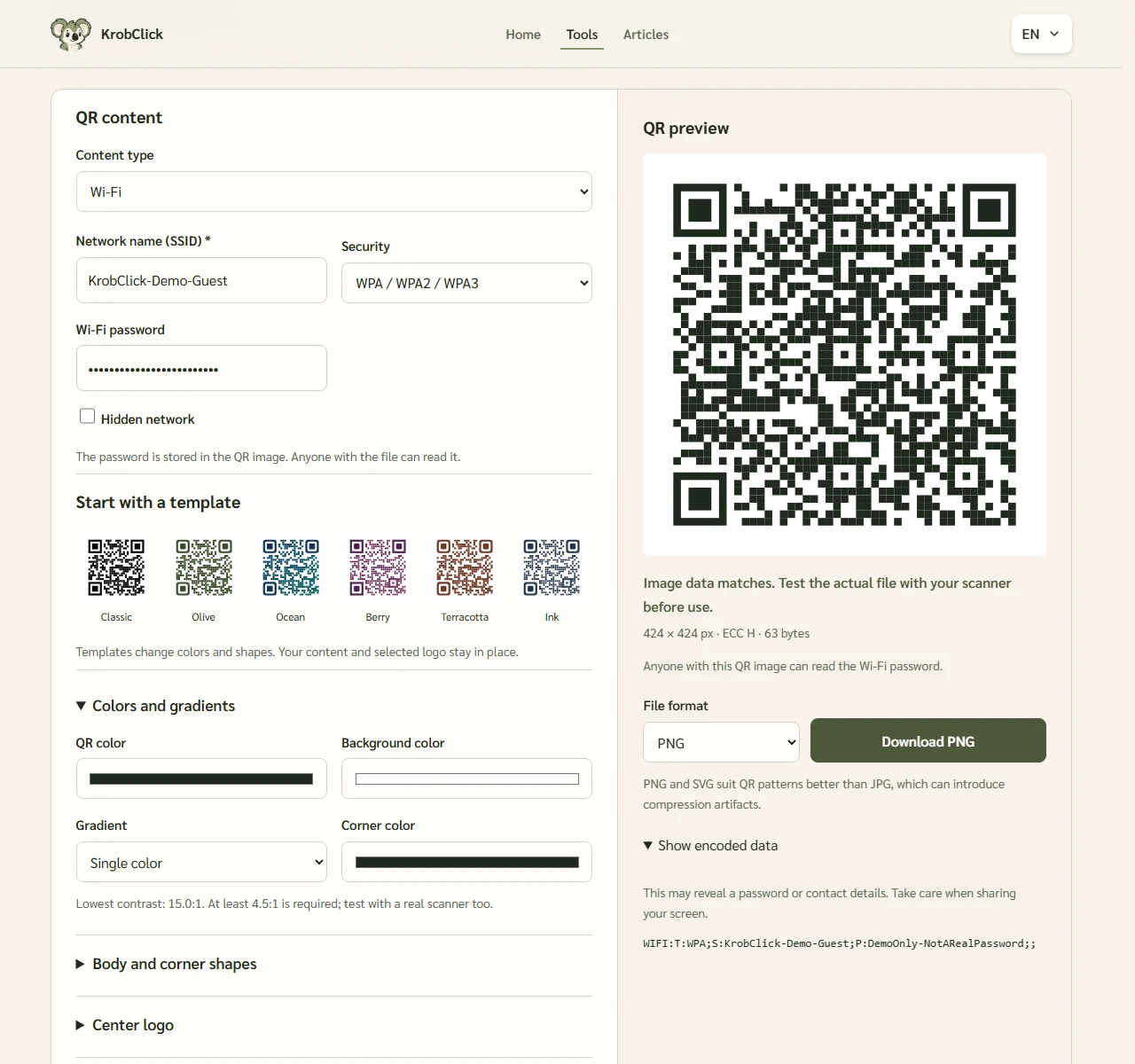
Enter the actual network name and password; the tool handles special characters required by the Wi-Fi text format. Adding escape characters yourself may change the password encoded in the QR code. The WPA / WPA2 / WPA3 option determines the encoded text; it does not confirm that every scanning device supports every configuration.
Scanning failures and Wi-Fi connection failures need different fixes
| Symptom | What should I check first? | Approach |
|---|---|---|
| The camera cannot find the QR. | Size, blurred patterns, empty edges, glare | Use the original file, enlarge it, and leave margins |
| Text appears, but no connection button | Does the reader app recognize the Wi-Fi format? | Try the system camera or connect it manually. |
| There was a connect button but it was rejected. | Do the SSID, password, and security type match? | Verify information with the administrator before creating a new one. |
| Connected, but no internet access | Router status, login page, and Guest permissions | Fix the network rather than increasing QR resolution |
For networks requiring a username, certificate, or Enterprise authentication, this form has no fields for those details, so do not distribute its QR code claiming support. Likewise, a QR code cannot bypass a network's subsequent web page for accepting terms.
Share only with appropriate groups and replace the image when the password changes
Place the sign where you intend to grant network access. Check whether people can photograph it from outside, and do not reuse the image for other accounts or services. After a password change, the old QR still decodes to the old password. Replace signs, document copies, and previously shared images too.
To revoke access, change the password or manage permissions on the router or network system. Deleting the image from your device does not remove copies held by others, and generating a new QR code with the same password does not invalidate the old image.
Before attaching a sign, check both the image and actual use.
Place the network name and brief instructions beside the QR, maintaining a plain background and quiet zone according to DENSO WAVE QR quiet-zone guidance then test scanning the actual-size sign on target users' devices. Read Guide to creating a QR that is easy to scan For print files, one successful on-screen test does not confirm a shop sign will scan easily in every lighting condition
Sources
Screenshot uses invented SSID KrobClick-Demo-Guest and password DemoOnly-NotARealPassword, not real network credentials. Documentation reviewed October 11, 2026. Connectivity depends on devices and network settings.