
Create a PromptPay QR Code with KrobClick: Set the Amount and Check the Recipient
A scannable QR does not prove money reaches the intended account. This guide covers choosing a PromptPay number, setting amounts, downloading files, and verifying recipient names through a bank before use.

Use your actual registered number
PromptPay QR generator Create a payment QR code from the number you specify. Set an amount in the code or leave it for the payer to enter. The tool does not register you for PromptPay or connect to a bank to check which account the number is linked to.
Information of Bank of Thailand Explains PromptPay and account-linked identifiers. Check your number in your own banking app or with your bank first. An unlinked number must be registered with the bank even if the tool already generates a QR image.
Fill in the information and choose whether to specify the amount or not.
- Choose Phone Number or National ID/Tax ID according to the registered identifier
- Enter a 10-digit Thai phone number starting with 0, or a 13-digit number for the selected type. The tool checks number format, not bank registration or ownership.
- For a fixed amount, enter the amount in baht, such as 125.50. To let the payer enter it, leave the amount blank rather than entering 0.
- Select “Generate and verify QR,” then read the result, partially masked recipient number, and amount
- If you change the number or amount after generating the QR, generate it again and check the new file before sharing it.
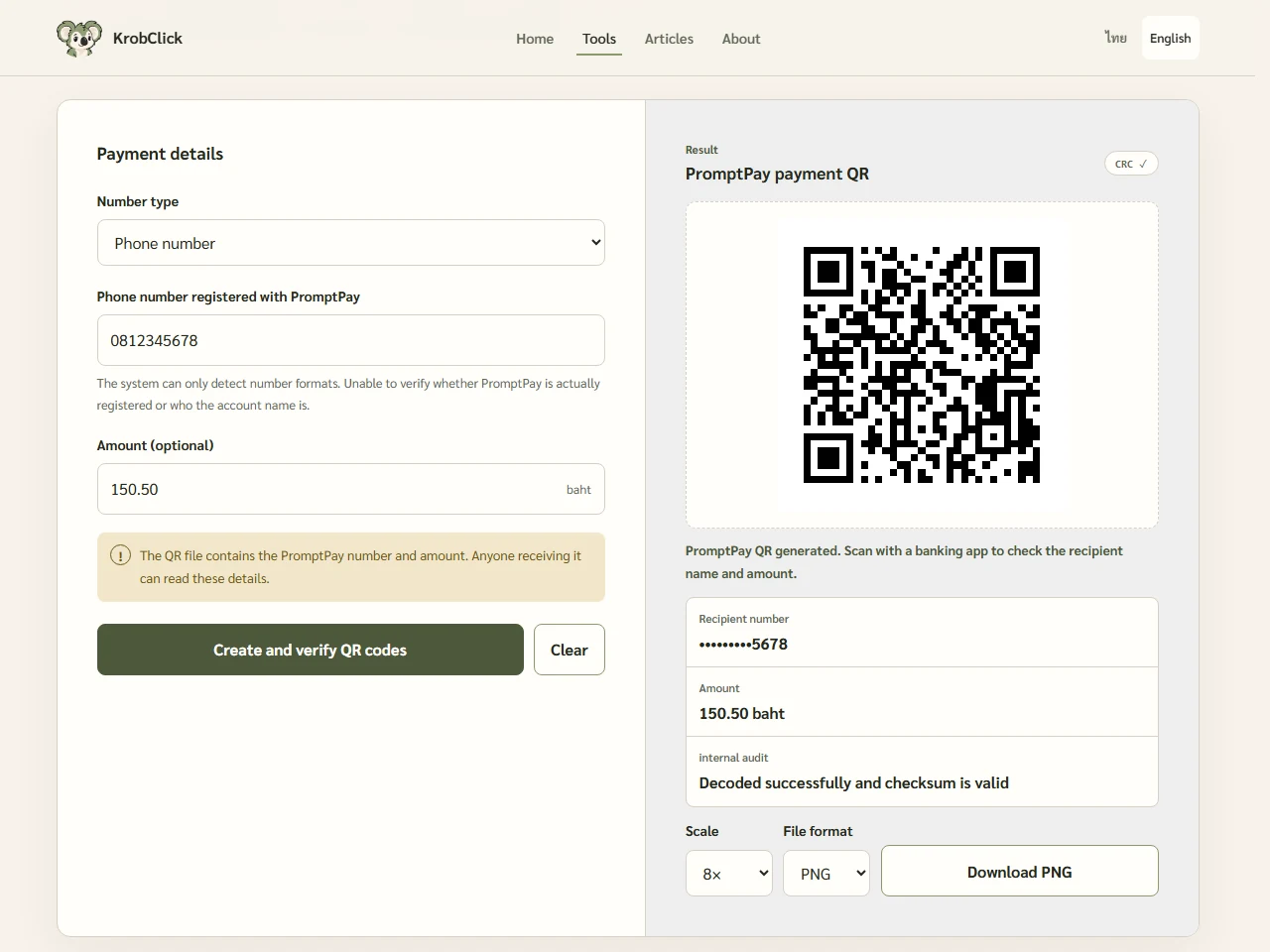
The 125.50-baht amount is hypothetical and illustrates the two modes. Leave the amount blank if each payer should enter a different sum. For a transaction with a fixed amount, enter it and recheck it in the banking app. This guide provides no sample recipient number for a trial payment.
Amounts must exceed 0 and be at most 999,999,999.99 baht. This is a software range, not a bank-approved limit. More than two decimals produces an error; the tool does not round automatically. Check source amounts first rather than using QR generation to decide accounting rounding.
What do successful decoding and a valid checksum establish?
| Test results | What it can indicate | What it cannot yet tell you |
|---|---|---|
| The image can be decoded | The system's decoder reads data from the generated patterns. | Every banking app will work in all lighting conditions |
| Checksum is correct. | The data passed checksum consistency validation | Who owns the number, or whether it is registered |
| There are numbers and amounts in the results. | Check the data that the tool can generate. | A transfer occurred or money was received |
Before publishing, use your bank app to scan the downloaded file. Then check the recipient's name and amount against the intended information. This inspection can be stopped before confirming the transfer. There is no need to transfer real money to view the name. According to the safety principles in the BoT's Digital Literacy document, the sender should check the recipient and the amount before making the transaction.
If the recipient name does not match or the app cannot read the QR code, stop using the image and check the number’s registration with the bank. KrobClick cannot change account registration or verify the recipient’s identity on the bank’s behalf.
Choose a file and check the output before sharing
Choose 4×, 8×, or 12× and PNG, JPG, WebP, or SVG for your target program. PNG is a useful starting point for crisp QR edges. This tool's SVG is built from the QR grid for vector-compatible software, unlike an SVG embedding a PDF-page image.
Keep a clear margin around the QR pattern, avoid cropping too close, and test it after placing it in a layout or printing it. To read the image’s contents before using a banking app, try QR reader understanding that reading data does not confirm the account name. Read QR size and border guide For details about the output
What information does QR reveal and what does it not reveal?
Although results mask part of the number, the QR file still contains the PromptPay identifier and any specified amount. Anyone receiving the image can decode it. Consider recipients before sharing a QR containing personal identifiers. Do not alter amounts or publish another person's QR without permission.
KrobClick creates the QR code in the browser; the banking app is the bank’s service. The tool does not track balances, notify you of incoming payments, or issue payment receipts. Confirm receipt through your own bank’s channels. A slip image or a “QR created” message is not a substitute.
Sources
- Bank of Thailand: PromptPay
- Bank of Thailand: Digital Literacy and checking recipients before transferring
- KrobClick: PromptPay tools page
- KrobClick: Check number format and generate payload.
- KrobClick: QR readback and export
Tool page and code reviewed October 21, 2026. The screenshot is before number entry. No bank account-name verification, transfer, or receipt of real funds was tested. This is not personalized financial, legal, or tax advice.