
Create Animated LINE Stickers with KrobClick: Arrange Frames and Check ZIP Files
Once the poses are ready, they need a playback sequence and a complete set of submission files. This guide walks through LINE Animated Sticker Studio from adding frames to exporting a ZIP, and explains which checks require your own review.
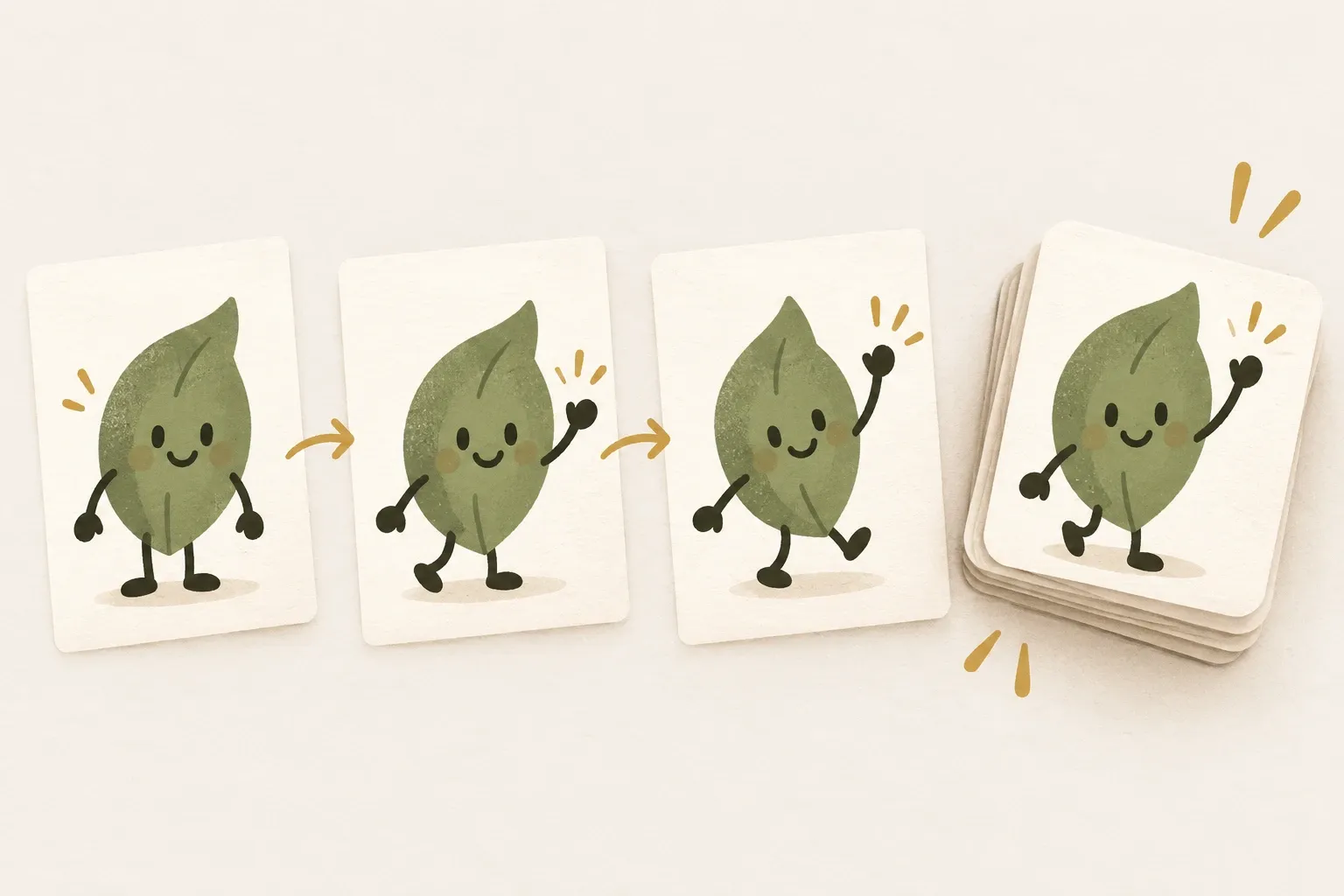
Start with multiple still poses rather than extracting GIF frames
LINE Animated Sticker Studio creates animated sticker sets from PNG, JPEG, or WebP still images. Each slot is one sticker with its own timeline. It does not extract frames from video, GIF, or APNG, or generate intermediate poses. Prepare the poses yourself, or duplicate frames and reposition their contents.
For static stickers, read the LINE Static Sticker Studio guide . For general GIF/APNG work with individual frame timing, read the Guide to combining images as GIF or APNG . Exporting an APNG alone does not establish that a sticker set is ready for LINE submission.
Follow LINE requirements and choose a set of 8, 16, or 24 animated stickers, plus main and tab images. The table shows this tool’s fixed export dimensions. LINE allows sticker images up to 320 × 270 px, with at least one side measuring 270 px or more.
| Files | Formats and dimensions from Studio | Where to select |
|---|---|---|
| 01.png onwards | APNG 320 × 270 px | Every frame in each slot |
| main.png | APNG 240 × 240 px | Slot selected with M |
| tab.png | PNG still image 96 × 74 px | First frame of the slot selected with T |
Prepare images with their backgrounds removed. Sources are limited to 20 MiB each and 60 MB per import batch. Resized frame images retained in a project are also limited to 60 MB in total. Images are fitted proportionally to a 320 × 270 px canvas, so keep high-resolution originals separately.
Select a slot before adding images, then edit the selected frame
- Choose the sticker count above, then select a slot from the left-hand thumbnails, such as Sticker 01
- Select “Add frame” to import still images into the selected slot. You can add more images later, up to 20 frames per slot. Check their order on the timeline after each import.
- Select a frame thumbnail below the canvas. The Images tab adjusts size, rotation, and X/Y position for that frame. Fit to Canvas restores the image to fit the frame.
- Open the “Text” tab to enter up to 4 lines and adjust size, color, or position. Text is stored separately per frame, so check other frames for the text you want too.
- Use “Duplicate frame” to start with existing images and text, then move or edit the copy. “Delete frame” removes the selected frame. Undo and redo help reverse changes.
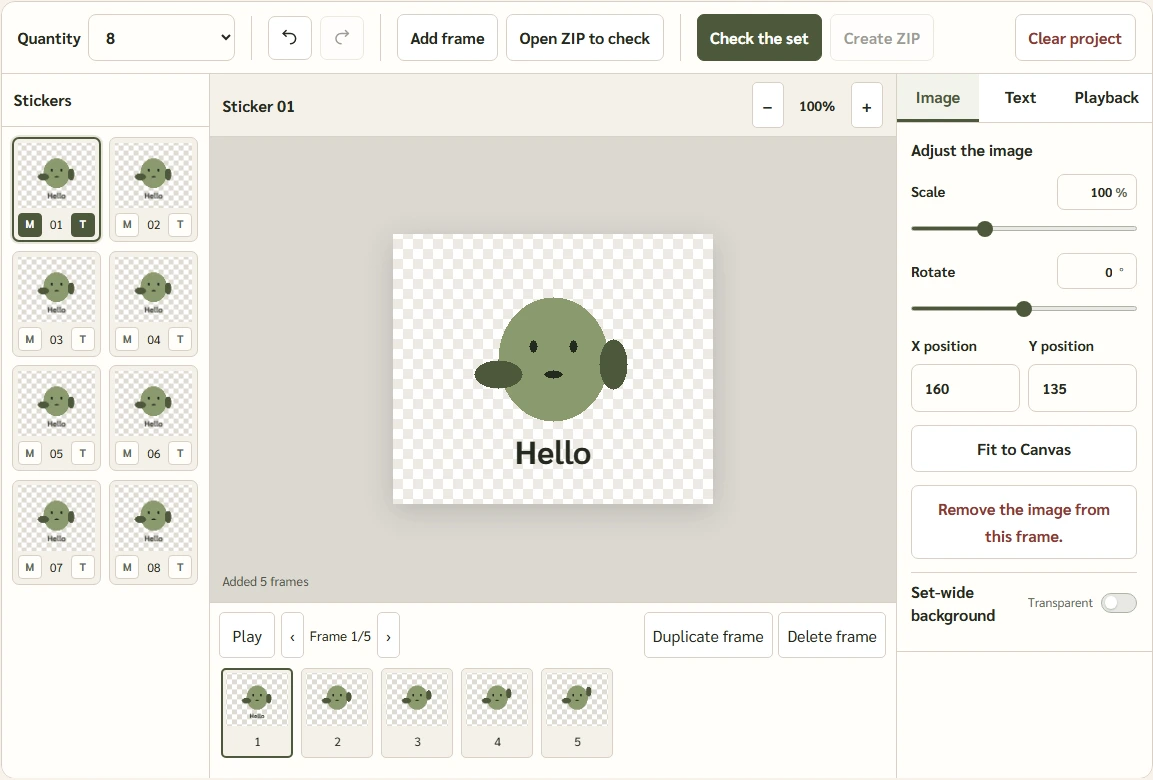
Drag frames to reorder them, or focus a thumbnail and press Alt with the left/right arrow keys. Dragging a sticker thumbnail moves its entire slot, including frames and settings. Check whether you are dragging a slot or a frame before dropping it.
The workspace stays 1152 px wide on every device. On small screens, scroll horizontally inside the frame to reach all panels and controls. For keyboard navigation, focus the frame and use the arrow keys. The Play and previous/next controls are on the left of the timeline; Duplicate frame and Delete frame are on the right. While playing, the button changes to Stop. Stop at the current frame, or let playback finish to return to the first frame.
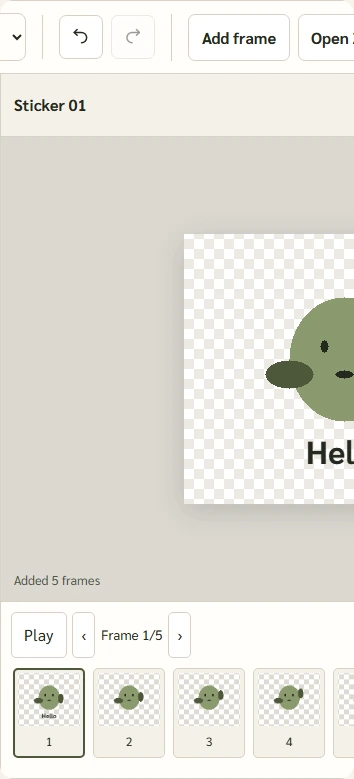
For a text-only frame, add an image first, type text in that frame, then return to the “Image” tab and select “Remove image from this frame.” The text remains. Duplicate it and change the text or position as needed. Frames with neither an image nor text within the canvas fail validation.
Playback time per loop multiplied by loop count must not exceed 4 seconds
Open Playback and choose the current slot's duration per loop and loop count, following Frame and playback time requirements for LINE . Each sticker requires 5–20 frames, a loop duration of 1, 2, 3, or 4 seconds, and total playback of no more than 4 seconds across all loops.
Hypothetical example: 10 frames, 2 seconds per loop, and 2 loops produce 2 × 2 = 4 seconds of playback. Studio distributes the duration approximately evenly across frames, giving 200 ms per frame in this example. Three loops would total 6 seconds and fail validation; reduce the loop count or duration.
This Studio has no individual frame-timing fields. Identical frames fail validation even with valid counts and duration. After duplicating, change poses, positions, or text meaningfully. Preview timing before the next slot, and check each slot separately because timing is not shared across the set.
Choose the main image (M) and tab image (T), then check their first frames
Under each sticker thumbnail, M chooses the source slot for main.png and T for tab.png. Selected buttons appear pressed. The same or different slots can be used, and selections follow their original slots when reordered.
main.png uses the M slot's animation, proportionally fitted within 240 × 240 px. tab.png uses only the T slot's first frame as a 96 × 74 px still image. Check text and expressions at reduced size rather than relying on the large canvas.
LINE uses the first frame as a still image on some screens or when animation is stopped. It should convey meaning by itself: a “Thank you” sticker should not begin blank and reveal text only at the end. Move a meaningful frame first and check the remaining sequence still flows.
Check the set, then inspect the exported ZIP
When all slots are ready, turn off “Background for all” in the “Images” tab and select “Check set”. The tool encodes the frames and checks content, transparent areas, timing, APNG size, and ZIP size before enabling “Create ZIP”. Check the set again after editing.
LINE requires transparent backgrounds, each image no larger than 1 MB, and ZIPs no larger than 60 MB. Studio uses caps of 1,000,000 and 60,000,000 bytes. Downloads contain sequential 01.png files plus main.png and tab.png. Despite .png extensions, sticker files and main.png are multiframe APNGs.
Select “Open ZIP to check” and choose the exported ZIP. The tool checks filenames, image dimensions, PNG/APNG structure, frame counts, duration, and loops. It does not display or evaluate every frame, confirm complete background removal, or restore the ZIP as an editable project. Open actual downloaded files and test in the destination system before submitting.
Fix the sticker in the flagged slot
- Insufficient frames: add images or duplicate and edit frames until every slot has 5–20, not just the selected slot
- Identical frames: change the images, layout, or text to make the frames meaningfully different. Adding identical copies does not create movement.
- Opaque background: turn off the set-wide background color. If a source image has a solid background, remove it from the source yourself. The tool does not remove image backgrounds, and a few transparent pixels do not prove that the area around a character is clean.
- Empty frames: select the indicated frame and check its image and text. Objects outside the canvas are not exported, and parts extending beyond the canvas may be cropped. Inspect every frame yourself.
- APNG too large: reduce detail, colors, or frames while remaining within requirements, then recheck. This cannot guarantee meeting the size cap because image content also affects size.
The work is in the browser, but the ZIP is not a project file.
Images and text are processed in the browser without uploads. Studio saves frames, text, order, playback timing, M/T, background, and zoom in IndexedDB separately from Static Studio. A message above the workspace warns if saving fails. Resume in the same browser profile. Work is not synced across devices and may be lost when site data is cleared or the browser manages storage.
Keep original images separately and download a ZIP when finished. ZIPs store exported results and cannot restore text and positions as the original project through “Open ZIP to check.” On shared devices, others using the same profile may open saved work. Select “Clear project” to delete work on this device.
Before submitting to LINE, manually check each first frame, the small tab image, transparency, and animation timing, along with rights to the characters, images, fonts, and text. KrobClick checks can identify file errors, but content review and LINE approval are still required.
Requirements and tools used for inspection
- LINE Creators Market: Animated Stickers
- LINE Creators Market: Animated Sticker Creation Guidelines
- KrobClick: LINE Animated Sticker Studio
LINE requirements and the tool in PR #131 reviewed October 24, 2026. Timing and images are KrobClick demos, not LINE approval results. The tool does not submit on your behalf or guarantee approval. Check current rules before submission.