
Create GIFs and APNGs with KrobClick: Set Timing and Check Files Before Use
If an animation plays too fast or its transparent edges look rough, check frame order, timing, and format before lowering quality. Each setting affects a different part of the result.
To prepare an animated sticker set for LINE, use LINE Animated Sticker Studio with separate sticker slots, main and tab image choices, validation, and ZIP packaging. APNG export from a general GIF/APNG tool does not establish LINE compliance.
Prepare still images and verify their actual order
Select 1–40 still PNG, JPEG, or WebP images in GIF/APNG maker . Add images in batches if needed; each batch is appended. Thumbnails show playback order, which may differ from filename order in the file picker. Drag thumbnails to an insertion line using a mouse or touch, or use the Previous/Next buttons with a keyboard. Reverse order also reverses each image’s timing. “Delete” removes a frame and cannot be undone.
Set each canvas dimension from 16–640 px. Images are centered and fitted proportionally, with transparent space around them. Sources are limited to 20 MiB each and 60 MiB in total; output frames are limited to 16 million pixels combined. Forty 640 × 640 px frames exceed that limit, so reduce the dimensions or frame count.
Per-frame timing changes rhythm more than a single FPS value
Default timing applies to newly added images. Select “Apply this duration to all frames” to update the existing set. Each item's duration field changes only that frame. In milliseconds, 1,000 ms equals one second. Three hypothetical images at 200, 200, and 600 ms play one loop in about one second, with the last held longer; no duplication is needed to extend its duration.
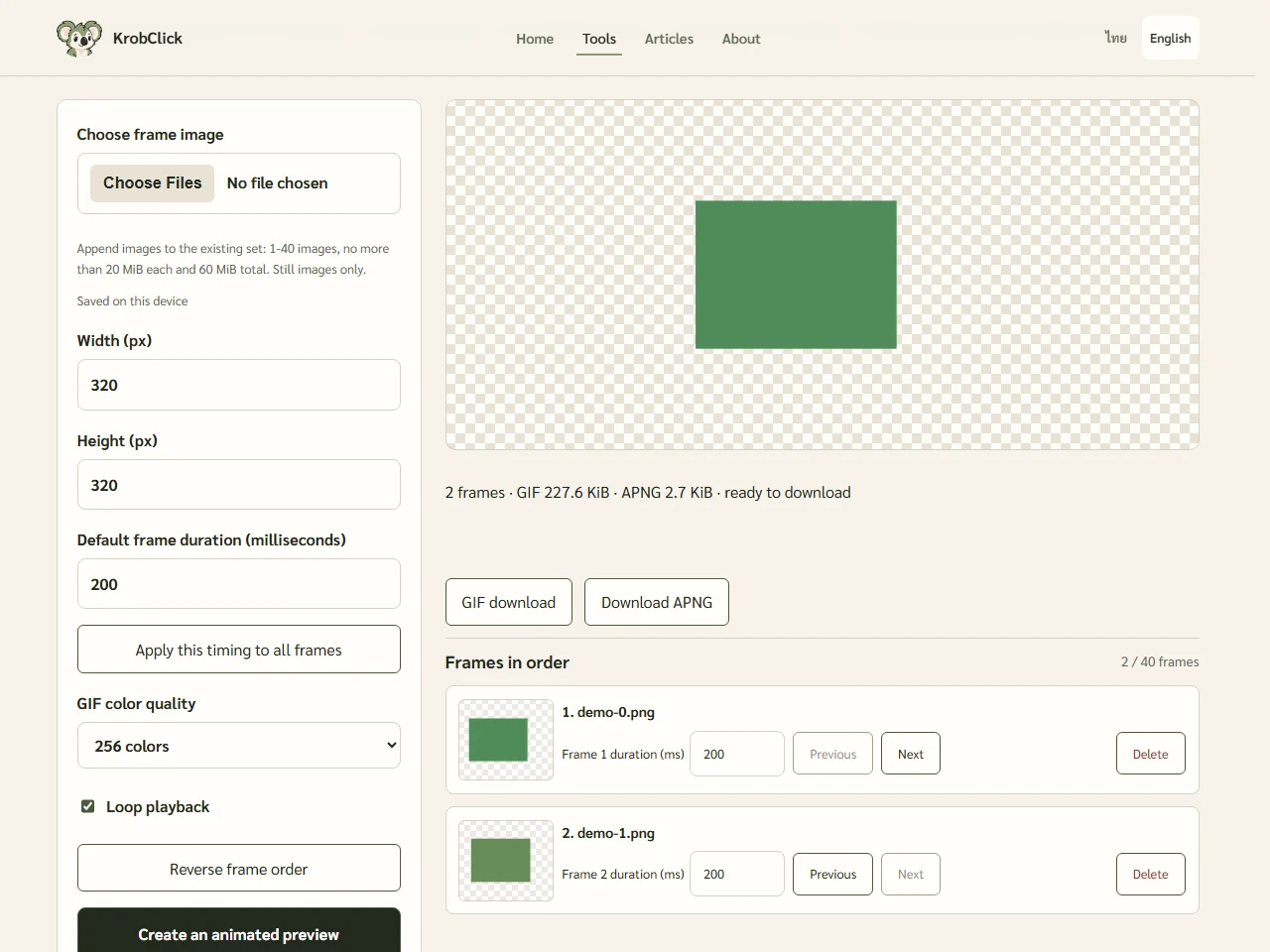
The tool accepts 20–10,000 ms per frame. GIF stores delays in 10 ms increments, so other values are rounded to the nearest increment. Destination viewers may impose further speed limits. Avoid intense flashing and test on the actual page where it will be used.
GIF and APNG differ in color and transparency.
GIF export uses a fixed 256-color palette, with a 64-color option to reduce color detail. Fewer colors do not guarantee a smaller file. GIF transparency is binary, which can make semitransparent shadows and curved edges rough. APNG retains full color and partial transparency, but some destinations accept only GIF or display APNG as a still image.
The on-page preview is APNG. If you plan to use GIF, open the downloaded file to check its colors too. This tool’s GIF encoder does not use advanced compression, so its files may be larger than those from other tools even with the same images and timing. If the file is too large, try reducing its width and height or removing unnecessary frames. Keep the originals separately.
Check the file at its destination before sharing
Work autosaves in this browser's IndexedDB, including originals, thumbnails, frame order, timing, output dimensions, colors, and looping. Resume in the same profile, but regenerate previews before downloading. Output files are not saved with work. Data does not sync, other profile users may see it, and browsers may remove it. Download finished work; Clear Data removes saved work and image copies.
Regenerate preview after every settings change and check timing, loops, colors, and edges. Download both formats for comparison where supported. The tool does not extract frames from videos, GIFs, or APNGs and does not add audio. To adjust stills first, use Guide to resizing and compressing images
Sources
Example timings and dimensions are hypothetical settings. Target programs may handle animation and timing differently; check the downloaded file again.