
Reduce image size with KrobClick and check clarity before downloading.
An image may exceed a file size limit even when its dimensions are acceptable. Some images need stronger compression, others need fewer pixels, and text-heavy images need enough detail to remain readable. Choose the method that addresses the actual limit before converting.
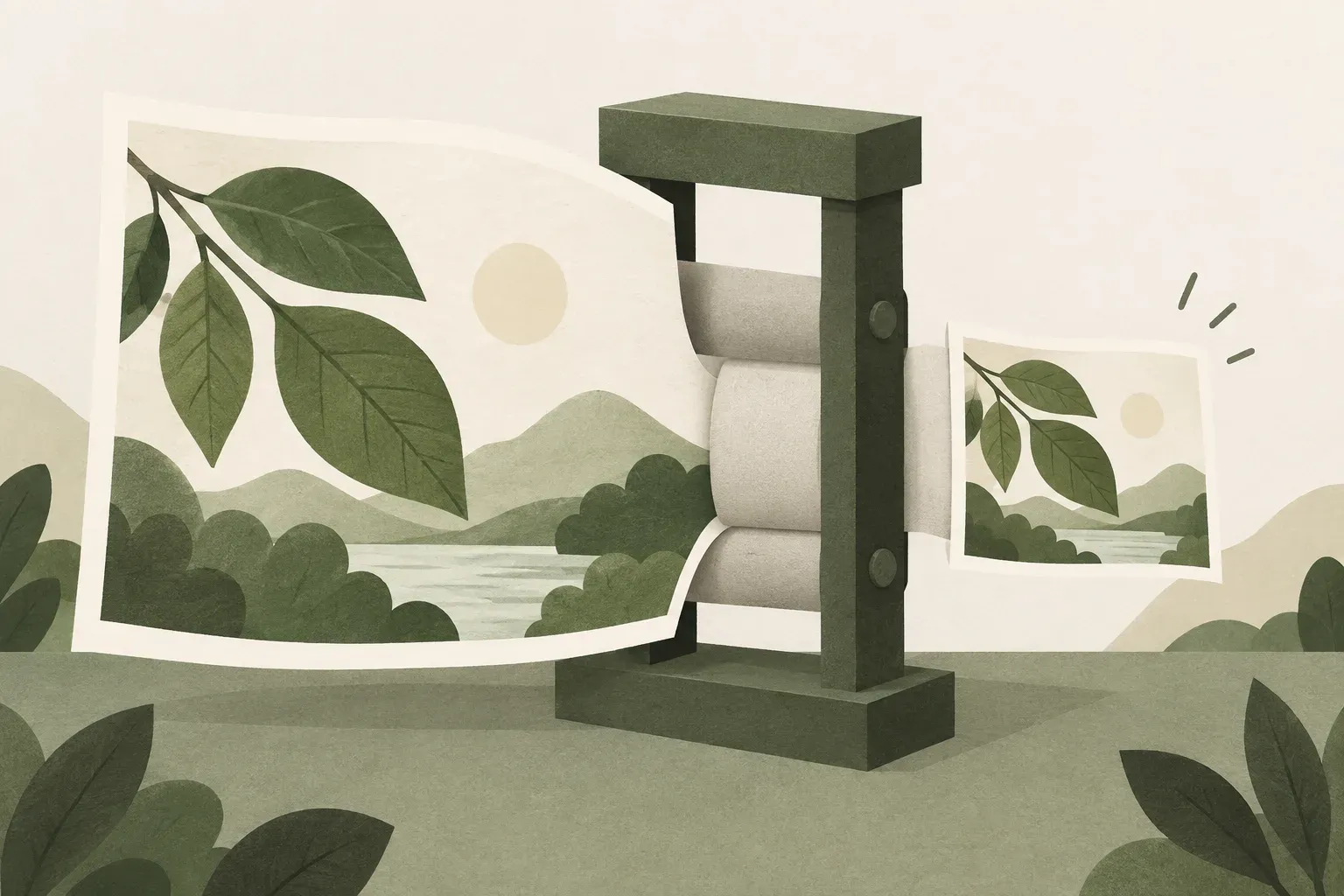
File size and image size are not the same value.
File size is the amount of data, such as bytes, KB, or MB. Image size is the width times height in pixels. An image 4,000 × 3,000 has 12 megapixels, but how many MB it will be depends on the detail and compression. If the form says “not more than 2 MB”, looking only at the width cannot answer whether the file passes or not.
Before starting, write down all recipient requirements, including file type, data ceiling, and desired dimensions. Do not confuse MB with MiB because they use different bases. The KrobClick tool specifies the input ceiling as 20 MiB. Other systems may use the term MB in their own definitions. You should leave some margin instead of squeezing it to fit the last number.
Choose whether to reduce pixels or compress data
Reducing 4,000 × 3,000 to 2,000 × 1,500 pixels cuts pixel count to one quarter, not necessarily bytes. This suits oversized display images. Lower JPEG/WebP quality preserves dimensions while discarding detail; check whether that detail matters.
A photograph may tolerate some texture loss, while documents and screenshots need legible small text. Check what information is lost as you lower quality. The MDN image format information explains lossy and lossless formats. Read the PNG, JPEG, and WebP Guide if you are unsure which format to choose.
Adjust dimensions and compress multiple images with KrobClick
- Keep the original and open the Image converter and compressor . Select up to 20 supported still images, totaling no more than 60 MiB.
- Choose JPEG when the destination requires JPG, or WebP if supported and you want to try a web-oriented file. For transparent images, inspect the background color before choosing JPEG.
- To resize images, open “Resize and set a file size target (optional)” and set maximum width and height, or leave them blank to keep the original size. The tool preserves aspect ratio, fits within the bounding box and never enlarges small images. A 4,000 × 3,000 px image in a 1,200 × 1,200 px box becomes 1,200 × 900 px.
- Set the initial quality and target file size in KiB. Leave the target blank or enter 0 for no target. For JPEG/WebP, the tool tries reducing quality down to 1% and flags results that still exceed the target. It does not reduce dimensions again to force the target. PNG/SVG do not use the quality setting.
- Compare before/after images and actual sizes. Download individually or ZIP successful files. Failed items show names and reasons. Keep originals separately.
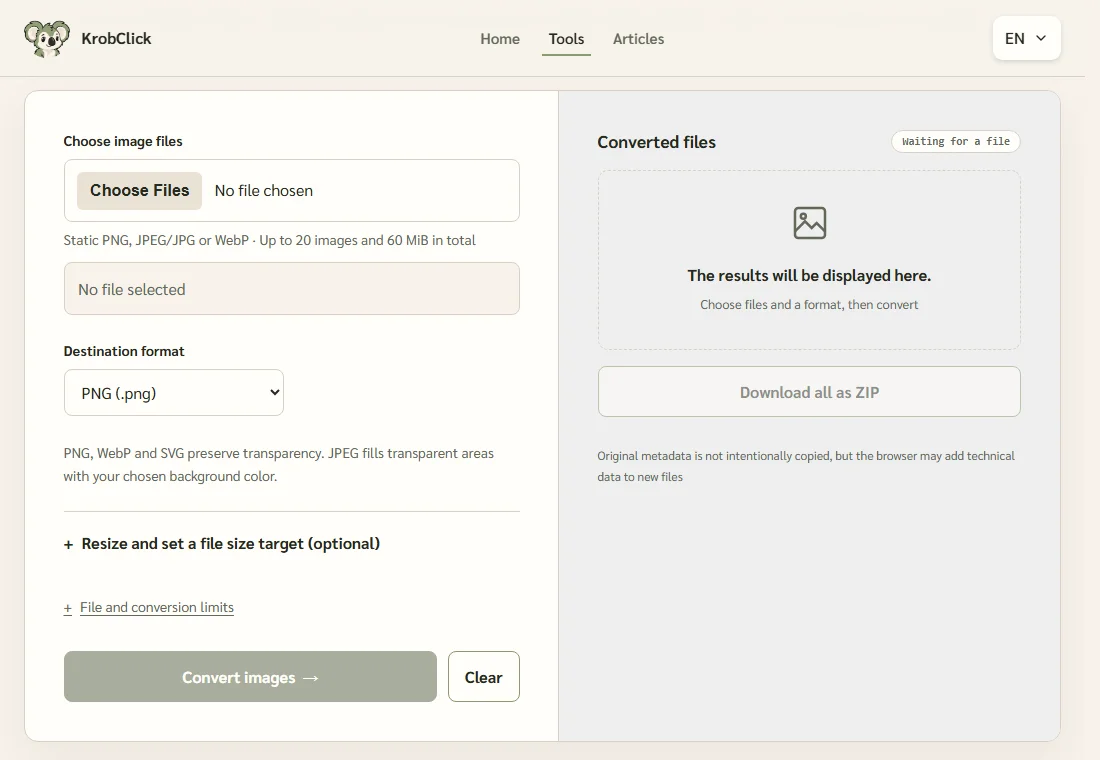
This page can adjust width and height bounds but does not yet crop images. It does not accept HEIC, GIF, or SVG sources or animation. Each image must meet limits of 20 MiB, 20 million pixels, and 8,192 px per side. Target file size is best effort, not guaranteed; a new image may be larger than its source.
Compare file size with the detail retained
These examples use the same 768 × 512 px illustration, encoded with Sharp at WebP quality settings of 85 and 20. They show how compression changes a file at fixed dimensions. They are not browser-tool performance measurements or a recommendation to use quality 20 for every image.
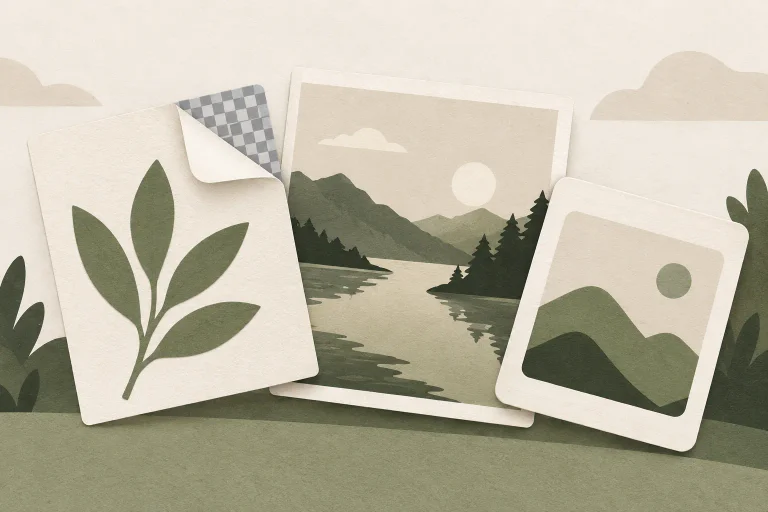
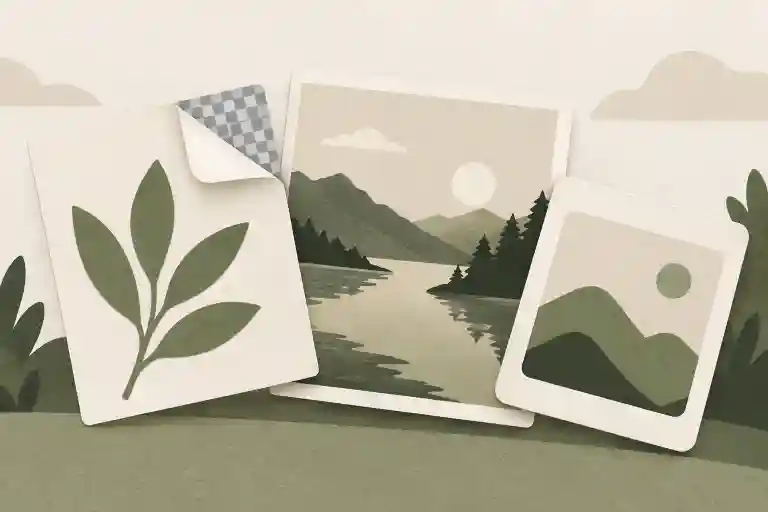
These examples use an illustration, so their results cannot be generalized to photographs or documents. WebP supports different compression modes. Review each output individually; JPEG and WebP quality settings are not equivalent scales.
Why an image file can get larger after conversion
Converting a well-compressed JPEG to PNG may make the file larger without improving sharpness. Raising the quality setting cannot restore detail already lost from the source. If the destination requires small dimensions, resize first so you do not have to compress unnecessary pixels until detail suffers.
Check the size of the file you just downloaded, taking care not to use an older file with a similar name. Thumbnails in some programs can look sharp enough to hide problems. Open the output at actual size, especially to inspect numbers, document identifiers, and lines the recipient needs to read.
Check the recipient’s requirements before sending
- The file type and byte count meet the requirements, and the filename extension matches the file’s actual format.
- Text, faces, and essential details remain clear, and the background color does not obscure information.
- Transparency remains correct in actual use, and dimensions are not distorted
- Keep the original separately. A new download should not overwrite the only remaining copy.
The tool does not intentionally copy original metadata, but browsers may add technical information to new files. Conversion does not certify removal of every type of personal data. If sensitive information appears in the image itself, address it directly before sharing.
Read more
KrobClick screenshots updated October 27, 2026. Sharp-encoded examples were prepared October 11, 2026 and are not browser-tool test results. No size or quality is guaranteed for other images.