
PNG, JPEG, and WebP: choose the right conversion with KrobClick
Similar-looking images can have very different file sizes. Converting an image to PNG cannot restore discarded detail. Choose a format for the image’s content, transparency, and destination requirements.
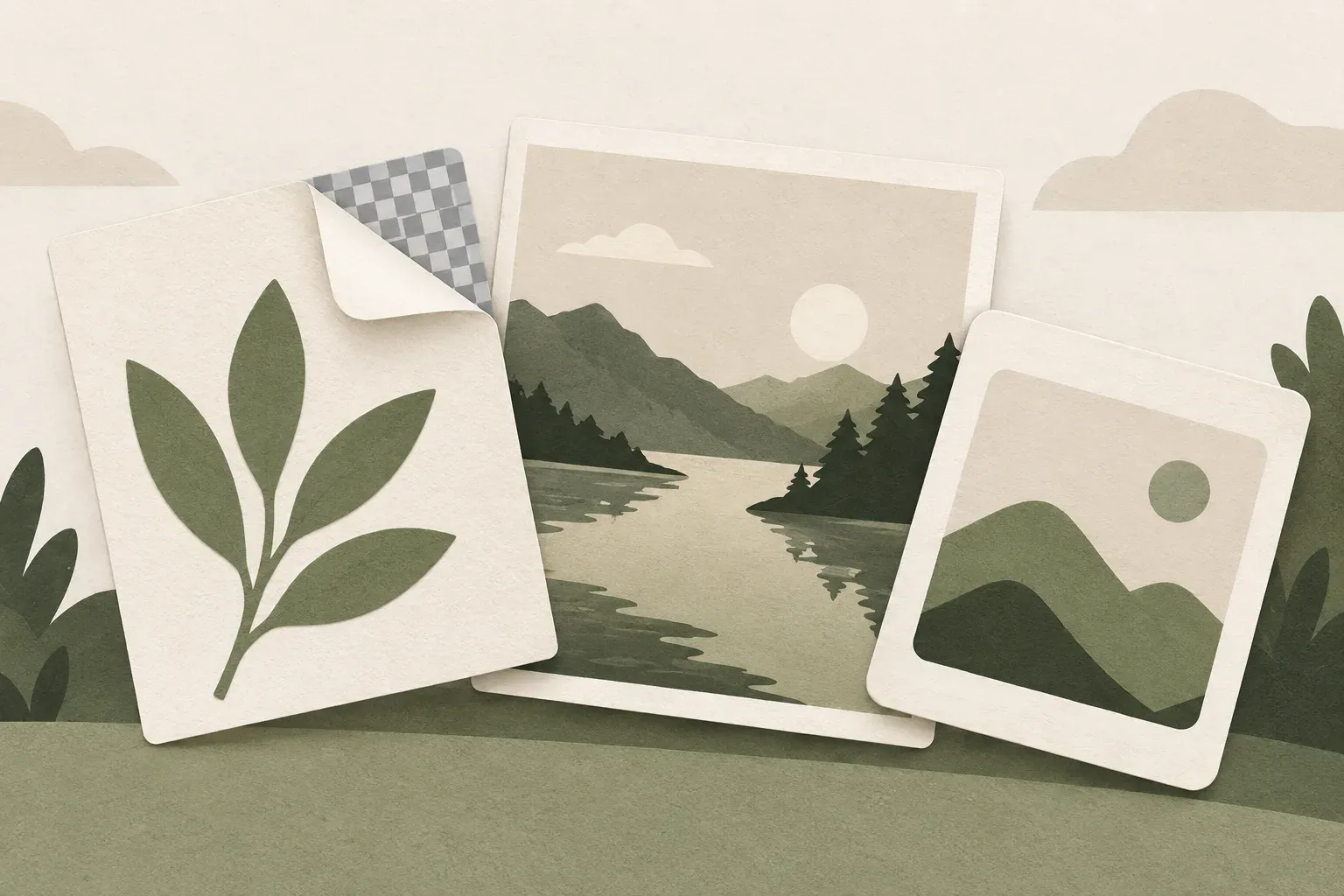
PNG, JPEG, and WebP differ in the way they store images.
PNG preserves pixel detail without additional loss and supports transparency. JPEG uses lossy compression for smaller photographs. WebP supports lossy and lossless encoding plus transparency. Check the encoding method; the extension alone does not establish equal quality.
MDN explains the properties of each image format. Meanwhile, Google WebP documentation lists supported compression methods. These help choose formats, but actual size depends on content, resolution, and encoder. Changing formats does not always make files smaller.
Choose based on image content and accepted destination formats
| Use case | Default options | Reasons and checks |
|---|---|---|
| The photo does not have a transparent background. | JPEG or WebP | Try compressing and looking at the details before judging. |
| Screenshots, letters, and lines | Lossless PNG or WebP | Avoid artifacts around text edges |
| Pixel logo with a transparent background | PNG or WebP preserving alpha transparency | View on light and dark backgrounds |
| The form accepts JPG only | JPEG | Follow the requirements: Don't send WebP that has been renamed to JPG. |
Follow the destination’s format and size requirements first. For websites, also consider the image-management system and the people viewing the images. One smaller sample does not justify converting every image to the same format.
View the actual file that comes from the same image.
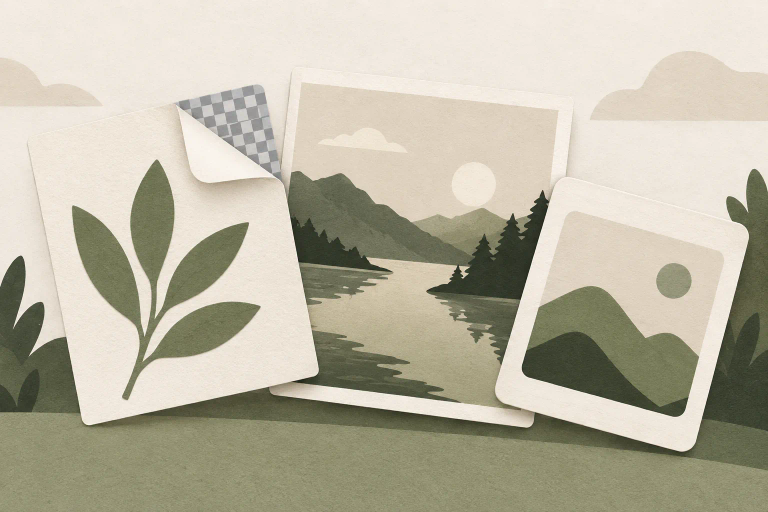
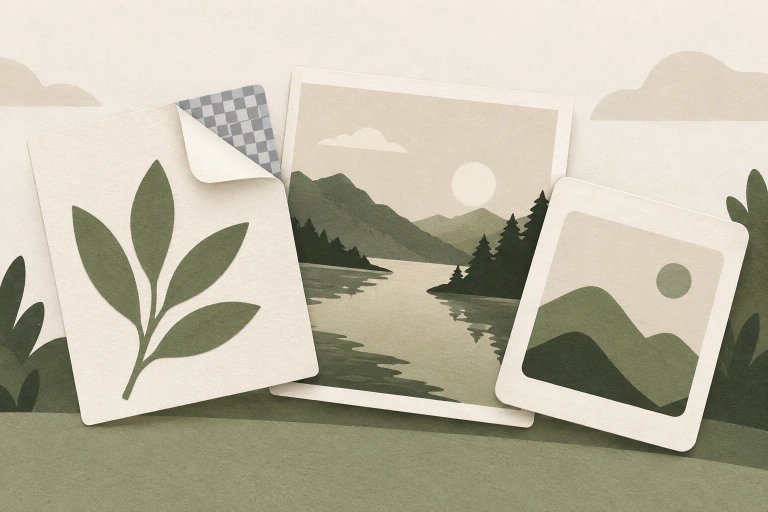
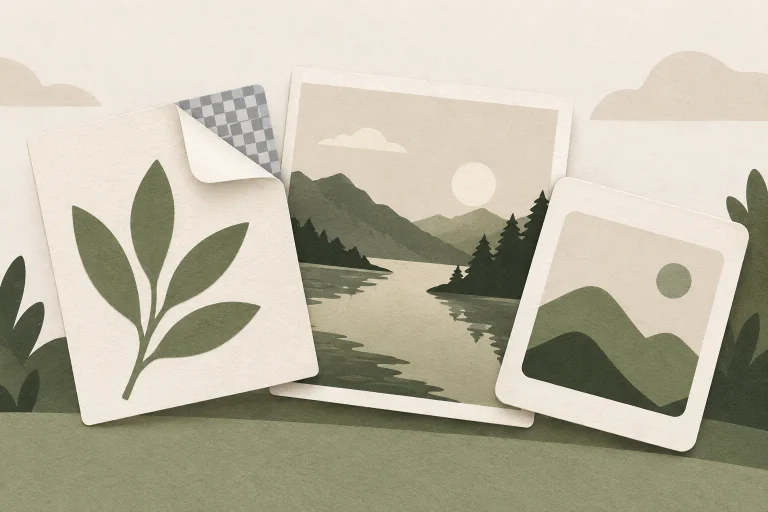
This example uses a KrobClick illustration, with one 768 × 512 px source encoded using Sharp as PNG, quality-85 JPEG, and quality-85 WebP. The two quality-85 settings are not equivalent image quality and do not guarantee the browser's quality-85 output.
Conversion does not restore detail or create vectors
Converting JPEG to PNG preserves the pixels decoded from the JPEG without further loss in the PNG step. Existing compression artifacts remain, and lost detail is not restored. Renaming the file extension does not convert its format: the underlying data stays the same, and a receiving system may reject it.
PNG and JPEG are raster images; increasing dimensions creates no original detail. KrobClick's image converter embeds raster data in SVG rather than tracing new vectors, so do not expect unlimited sharp enlargement.
Use the tool and check transparency and size after conversion
Open Image converter . Select a still PNG, JPEG/JPG, or WebP and an output format. Quality settings apply to JPEG and WebP. JPEG has no transparency, so choose a suitable background color. If a logo has white edges on a dark background, inspect the source pixels and background instead of lowering quality.
The tool handles up to 20 files in the browser, with sources totaling no more than 60 MiB. Limits of 20 MiB, 20 million pixels, and 8,192 pixels per side all apply. Animated files are unsupported. Width and height bounds preserve proportions but do not crop. Read Guide to reducing image size to distinguish resizing from file compression.
Keep the original and judge the file you will actually send
Open the converted file in the application the recipient will use. Check text, colors, background, important details, and file size. If the file is larger without improving the image for the intended task, you do not need to use it. Keep a high-quality original separately so future edits do not require recompressing a copy that has already lost detail.
Read more
KrobClick created this 768 × 512 pixel example from a site illustration, encoded with Sharp on October 11, 2026. It is not a browser-tool test or representative of every image type.