
How to add a logo to a scannable QR code
A logo can make a QR sign easier to recognize. Covering more of the pattern can make it harder for a camera to read. Keep a plain copy so you can compare the results as you make changes.

Keep a copy before adding the logo
Suppose a café wants its mark in the middle of a menu code. Start with the actual menu link and a dark pattern on a light background. Scan it and save a copy. If the decorated version fails, you have a usable fallback and a baseline for finding what changed.
Start with a 10% logo
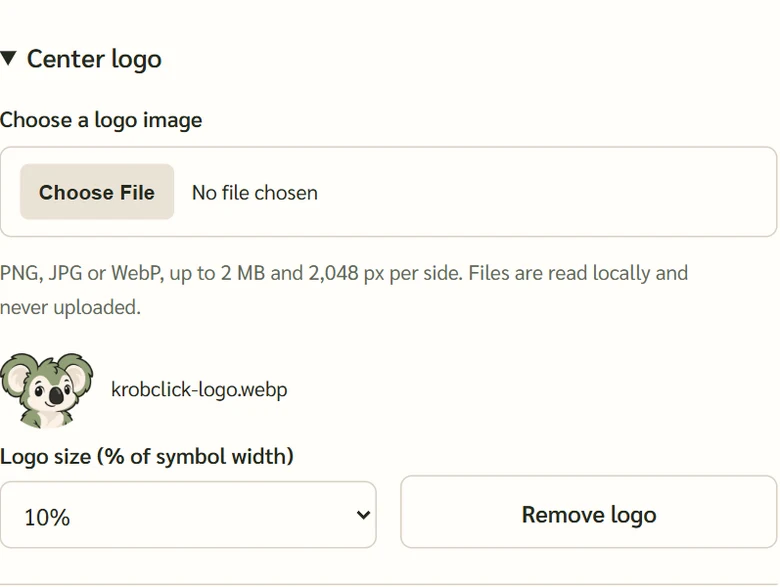
Open KrobClick’s QR Code Designer and expand Center logo. Choose an image and start at 10% of the symbol width, the smallest setting in the tool. Keep the original colors, shapes, and clear margin. Check the code in the tool, then scan the downloaded file. Try a larger logo only if you need the mark to be easier to see.
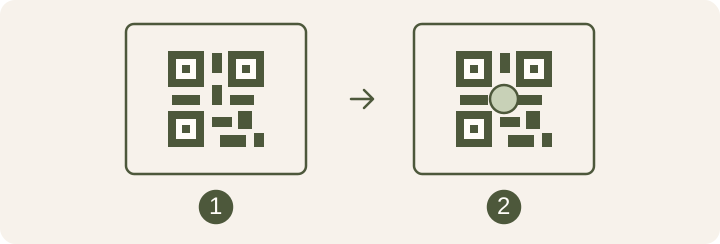
Why a logo can make a code harder to scan
DENSO WAVE expresses recovery as a share of data units called codewords. The designer’s logo setting measures a share of the pattern’s width. Those numbers describe different things. The same logo size can behave differently on two codes, so test the exact file you plan to use.
If the pattern becomes denser after you replace a short link with a longer one, test the new file. Keep the sign the same size and scan the new pattern before adding the logo. That will help you tell whether to change the sign or the decoration.
Scan a proof printed at full size
Place the decorated code in the sign and print it at actual size. Scan from the angle people will use. If it only works some of the time, compare it with the plain version at the same size. If the plain version scans more reliably, shrink the logo or place the mark beside the code, outside its clear margin.
Troubleshoot a code that will not scan