
Why won’t my QR code scan?
If the original file scans but the poster does not, start with how the image is placed. If the camera can already read the link, check the URL and the page it opens.
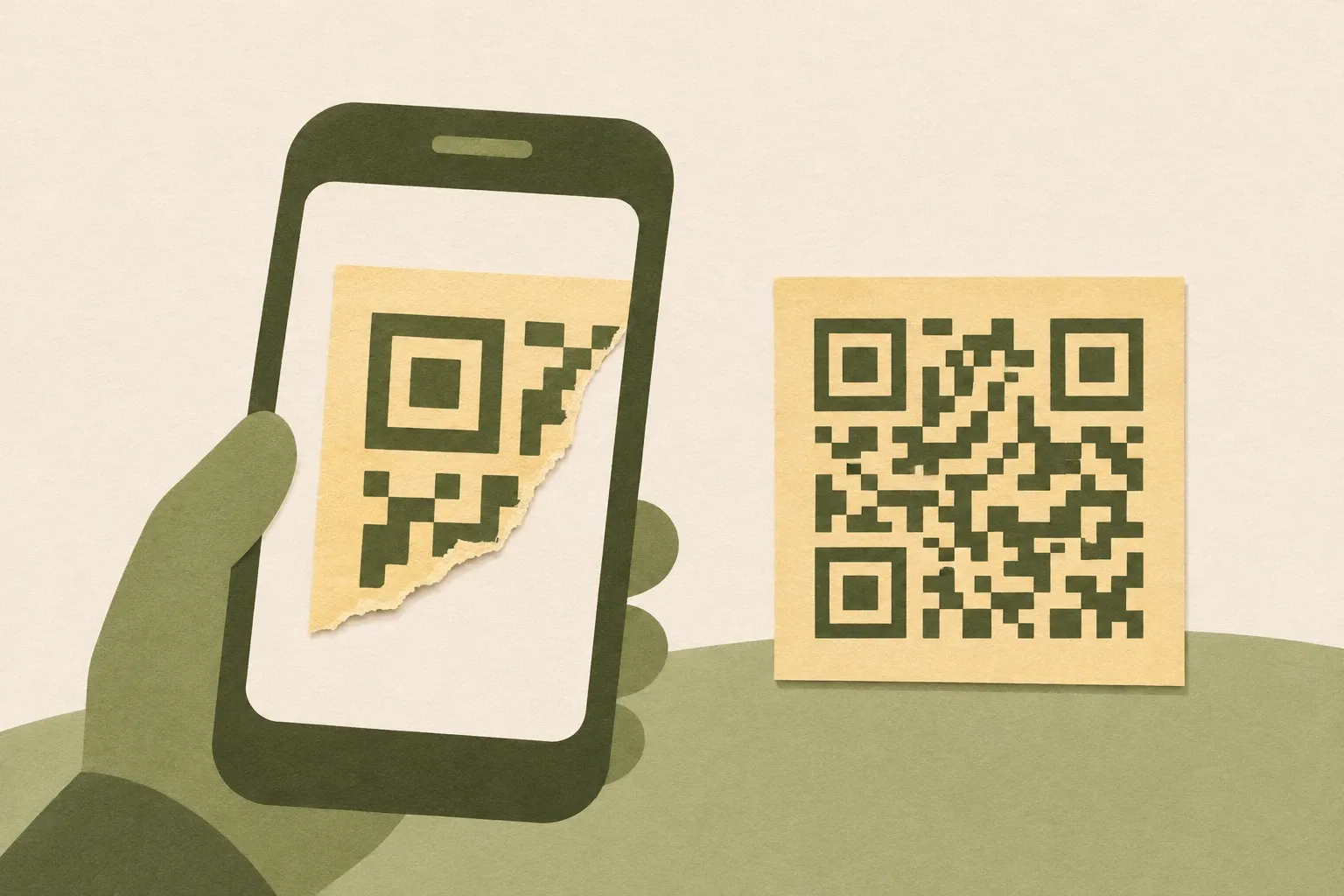
Is the code unreadable, or does the link fail?
A tabletop sign opens the menu, yet customers have to walk right up to the window to scan the same code on a poster. Before editing the file, see whether the camera shows a link. If it does, check the menu page. If it cannot read the pattern, start with the image and where it is mounted.
The file scans, but the printed sign does not
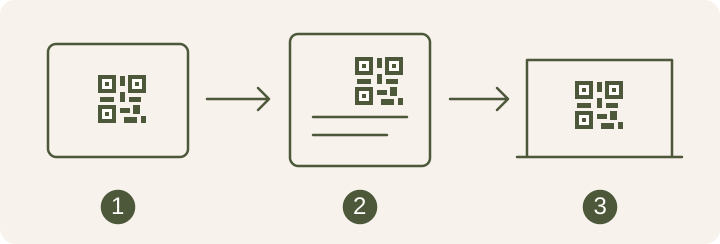
Read the original image, then the code in the layout, and finally the finished sign. If the layout is the first point of failure, check for a cropped margin or a pattern that blurred when resized. If both files scan and the sign still fails, try moving the phone away from the glare. This separates layout problems from problems introduced after installation.
If the sign used to scan, compare it with a photo from installation. Look for creases, a sticker over the code, or glare from the laminate. If the failure began after a color or logo change, go back to the last file that scanned and change one thing at a time.
| Symptom | What to check | How to fix it |
|---|---|---|
| The source file scans, but the poster does not | Was the image resized, blurred, cropped, or squeezed against other content? | Place the image again without stretching it or cutting off the margin. |
| It only scans up close | Are the squares too small at the intended distance? | Print it larger and try from where people will stand. |
| The plain code scans, but the styled one does not | Do the colors blend, does a logo cover the pattern, or is there glare? | Return to a dark pattern on a light background and test one change at a time. |
| The camera shows a link, but it is wrong or will not open | Read the URL from the image and compare it with the intended destination. | Fix the page if you control the existing URL, or generate a new code with the correct link. |
The code only scans up close
Put a larger proof in the same spot, keeping the link, colors, and material the same. Stand where customers first lift their phones. If the larger proof works better, check how much room it needs in the layout before ordering. If the original size works once the glare is gone, moving the sign may be enough.
Calculate the size before printing
The code scans, but the link will not open
Read the URL in the image and compare it with the intended link. Open it on a device that is signed out to see whether visitors can reach the page. If you still control the URL on the printed sign, you can fix the destination there. If the code contains the wrong URL and you cannot control it, replace the code.
Read how to check a link before opening it