
How to create a QR code for a location
A sign can send people to the right building and still leave them at the wrong door. Pick the destination on a map and open it from another phone before printing the code.
Choose a destination that matches the entrance
Suppose your shop is in a building with a front door and a separate car park entrance. A search for the shop may find the right building, even though pickups use the door on the other side. Decide whether the code should open the shop listing or the pickup point, and print the entrance name or a landmark beside it.
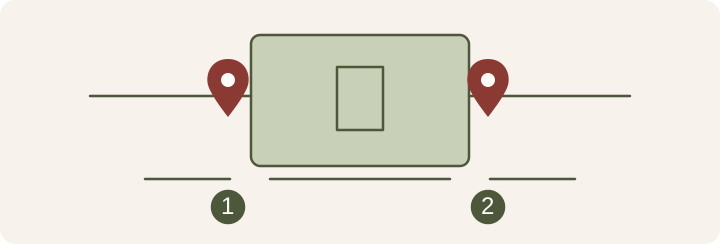
Create a QR code from a Google Maps link
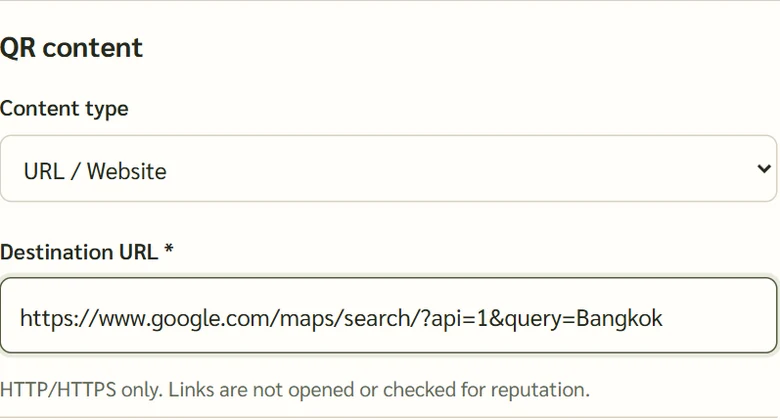
Select a place or pin in Google Maps, choose Share, and copy the link. Open it in a private window to check the branch and pin. In KrobClick’s QR Code Designer, choose URL and paste the link. Check and download the image, then scan the file with another phone.
Should you link to a pin or directions?
Use a pin link when you want people to see the destination first and choose how to get there. Google Maps also supports a Directions link with a specified destination. Check both the pin and the directions screen. The place name can be right even when the suggested route approaches from a different side.
If you are making signs for several branches, keep each branch name with its source link. When reviewing the proofs, scan the image for each branch. Opening links from the source list alone will miss a code that was swapped during layout.
Scan the code and check the destination
Send a sample to someone who has never visited. Ask which door they would use based on the page that opens. If they still need to call, add a short note beside the code, such as “Use the car park entrance.” If the link opens the wrong pin, correct it and generate a new image before handing it out. Printed codes keep their original link.
Read KrobClick’s QR code guide