
What size should a QR code be?
A QR code you can scan at arm’s length may be unreadable from across the counter. Work out how much space the code needs, then use a printed sample to choose a size for its actual location.
Check the distance people will scan from
Before setting the size in your layout, stand where someone will use their phone. A business card can move closer to the camera. A sign behind a counter has to work from the customer’s side. Glass and overhead lights can limit the usable angle. Note the rough distance and position for the print test.
Calculate the size including the clear margin
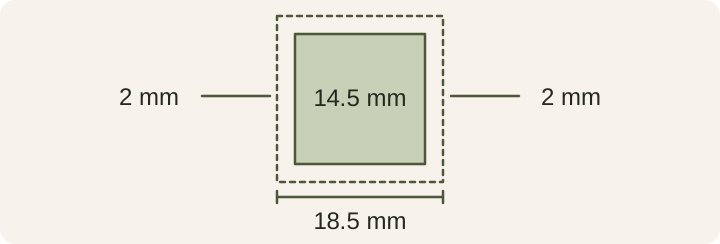
Each small square is a module. DENSO WAVE specifies a clear margin at least four modules wide on every side. A 29-module pattern printed at 0.5 mm per module is 14.5 mm wide, with 2 mm of clear space on each side. That gives (29 + 4 + 4) × 0.5 = 18.5 mm in both directions.
Use one small square at the edge of the pattern as your unit. Count four units of clear space to the left and right, then do the same at the top and bottom. If the exported image already includes its margin, measure from its outside edge and check that the layout preserves it.
Print and scan two sizes
The 18.5 mm figure is the footprint of this example on paper. Scan distance comes from testing the print. Print two sizes of the same code on the intended material, then scan from the distance you noted. Use more than one phone if possible. Keep color and material fixed so you can see what changing the size does.
| Format | Where to stand | What to check |
|---|---|---|
| Business card | Normal reading distance | The margin is intact and clear of text |
| Counter sign | Where customers stand to pay | Customers can scan without reaching across the counter |
| Storefront sign | The farthest intended scanning spot | Glare from sunlight or glass does not obscure the pattern |
Leave a clear margin in the print layout
Keep all four margins clear in the print layout. Leave text, trim lines, and background artwork outside that space. When the printer sends a proof, measure the actual printed size again. If the file scans and the print fails, use the troubleshooting guide to check resizing, cropping, and light.
Compare the original file with the print
Read KrobClick’s QR code guide