
How to create a QR code for a business card
A business card can help someone save your number or open a page you can update. The choice depends on what they need to do and how often your details change.
Choose a vCard or a contact page
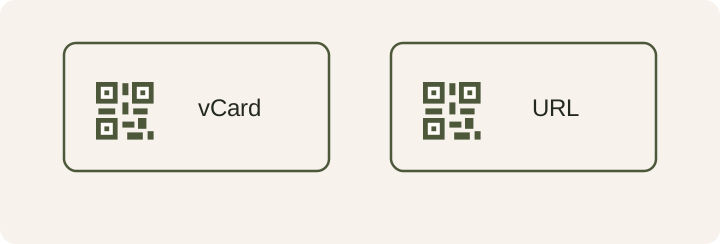
Choose a vCard when you want people to open a contact entry using details stored in the code. The number and email stay with that printed card. If your work number changes often, use a contact page you control. You can update the details there for as long as the URL stays available.
Think of a photographer handing out cards after an event. A vCard saves typing when people want to keep a phone number. A contact page has room for a portfolio and a choice of ways to get in touch. Decide based on what you want someone to see after scanning.
Create a vCard with your work contact details
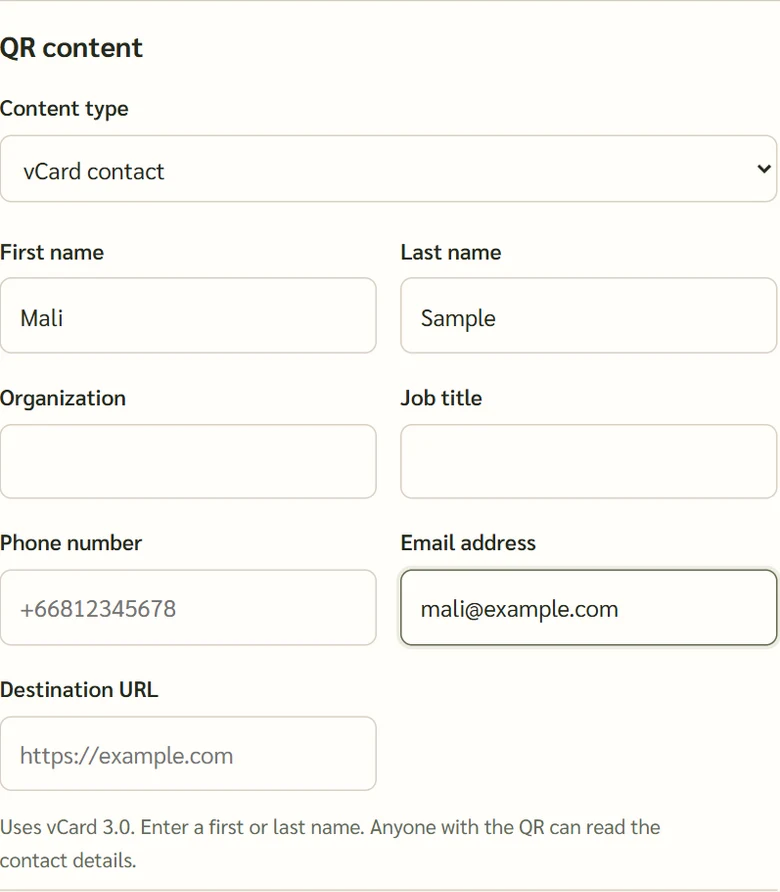
Choose vCard in KrobClick’s QR Code Designer. Enter at least a first or last name and add the contact details you use for work. If you have separate personal and work numbers, check which one you entered. Print your main contact details on the card as well so recipients can type them if they prefer.
Scan a proof and check the contact details
Scan the downloaded file before placing it in the layout, then print a full-size proof. Try both Android and iPhone if available. Open the contact preview and check the name, number, and email field by field. Reading the pattern alone does not tell you how every phone will interpret the contact details.
Allow for a clear margin before printing
Do you need new cards after changing a number?
If the card contains a vCard, replace the code so new recipients get the current number. If it links to a contact page, update that page and open it from an old card to check. A number printed as text on the card needs its own correction.