
PDF prints at the wrong size: what to check first
Does a printed pattern measure differently from the design, or is a label slightly too small for its box? Before editing the PDF or printing the entire set again, check the page size, paper and print settings.
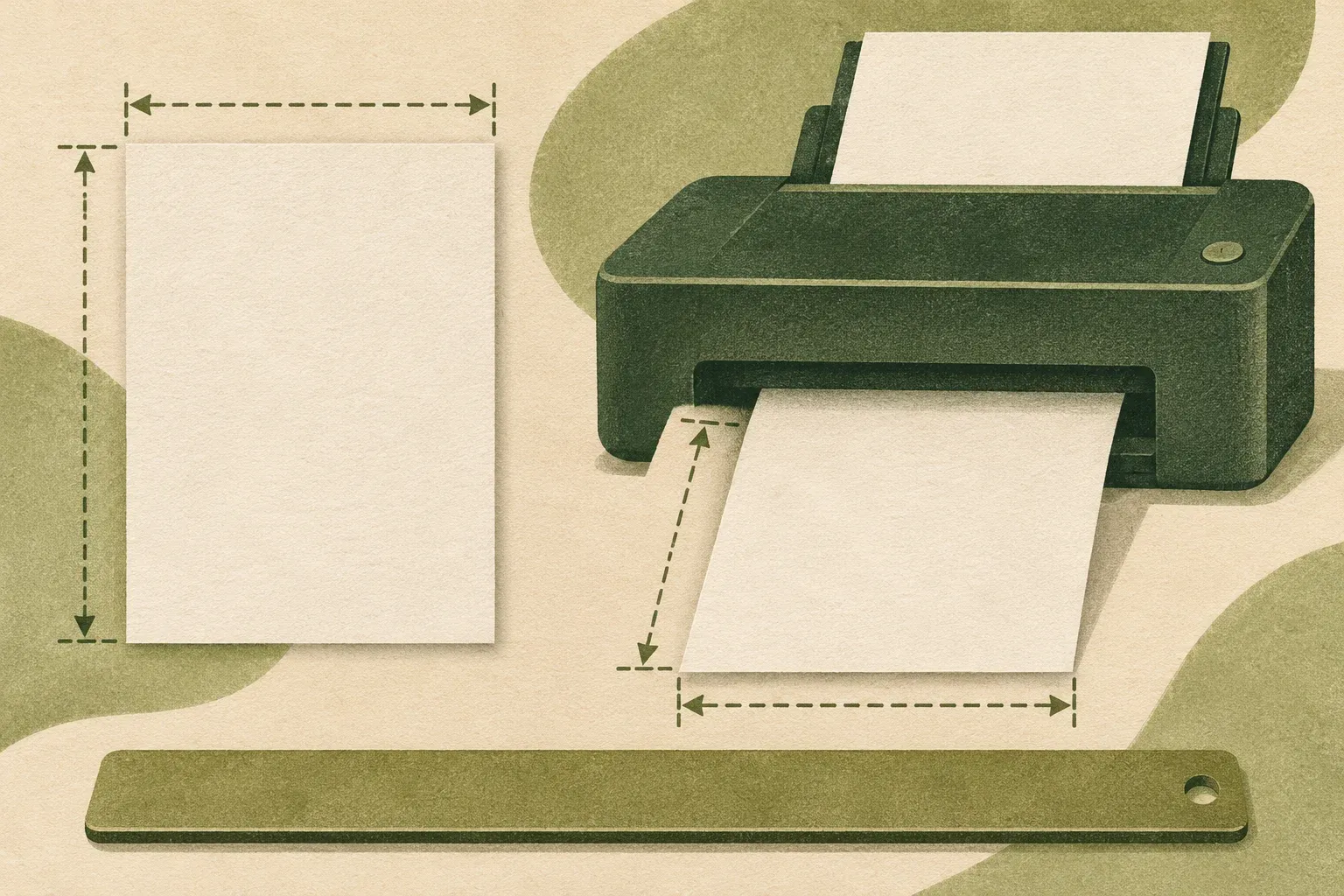
Before printing again, compare the PDF page and paper sizes
Open the document information in your PDF reader and check the size of the page you plan to print. Not every file is A4; some files even mix page sizes. If the designer specifies a size for the piece itself, check that too. A correctly sized PDF page does not guarantee that the design on it is the right size.
Next, compare the paper size and orientation in the print dialog with the sheets actually loaded. If the printer properties have another paper setting, check that as well. Menu names vary between applications.
Actual size or fit to page?
If you need a pattern to print at its specified dimensions, choose Actual size or 100% in the print dialog. In contrast, Fit or Fit to page scales the design to fit the printable area, so the piece may end up smaller or larger. Epson's Fit-to-Page guide describes how that printer driver adjusts the page to the selected paper size.
Do not confuse the zoom level on screen with the print scale. Even if the PDF displays at 100% zoom, check the print dialog. If both your PDF reader and printer driver offer scaling options, check both; turn off multiple-pages-per-sheet mode when the dimensions must stay the same. Printing at 100% cannot correct a design made at the wrong size or guarantee printer accuracy.
Edges missing despite printing at 100%?
If the PDF page is larger than the paper, or the design reaches beyond the printer's printable area, parts can be cut off even at actual size. Blank margins in the PDF and non-printable margins on the printer are different things. Check the print preview, then decide whether to use larger paper, tile across several sheets or scale to fit. Scaling down changes the size of the piece.
Borderless mode does not always preserve the scale. An Epson guide to borderless printing says the printer enlarges the image beyond the paper edges and crops the excess; the mode is not available for every paper type. Meanwhile, a Canon guide to borderless printing describes a borderless mode that scales the image to the paper. Your printer may behave differently, so check the manual for your model.
Print one sheet and measure it first
Choose a page with a reference line or frame whose dimensions the designer has specified. Check in print preview that it will not be cropped, then print one sheet. Measure between the reference points with a ruler; check both width and height if they are specified. The paper edges alone cannot tell you the size of the printed piece. For precision work, ask for a file with a measurable reference if none is provided.
Suppose the design specifies a 10 cm line, but the print measures 9.5 cm. You know the printed line is shorter; that measurement alone cannot tell you whether the file, scaling settings or printer caused it. Check the dimensions in the file and each scaling setting, then print and measure again. If the job has an allowed tolerance, compare your measurement with it. If it still does not match, consult the printer manual or ask the designer before using the print.
If the design spans several sheets
If the PDF is already divided into sheets for assembly, do not tile it again. Make sure each page is not scaled down. Print a test sheet, measure it and check the overlap before printing the whole set.
If you are starting from an image, read how to split an image for poster printing and check its actual size before printing. If you still need to set the page size and margins when creating the PDF, read the Guide to combining images into PDF to choose the page size when creating the file.
Sources used for verification
- Epson: Fit-to-Page Printing
- Epson: Borderless Printing
- Canon: Printing without Margins to Match Paper Size
Manufacturer documentation explains the principles and provides examples of settings for certain models. This article has not been tested with an actual printer. Menu names and print results may vary by application, driver and printer.