
Split an Image into A4 Poster Sheets with KrobClick and Check the Actual Size
Have an A4 printer but need a larger poster? The splitter spreads images across pages. Watch for automatic print scaling and enlargement beyond available detail.
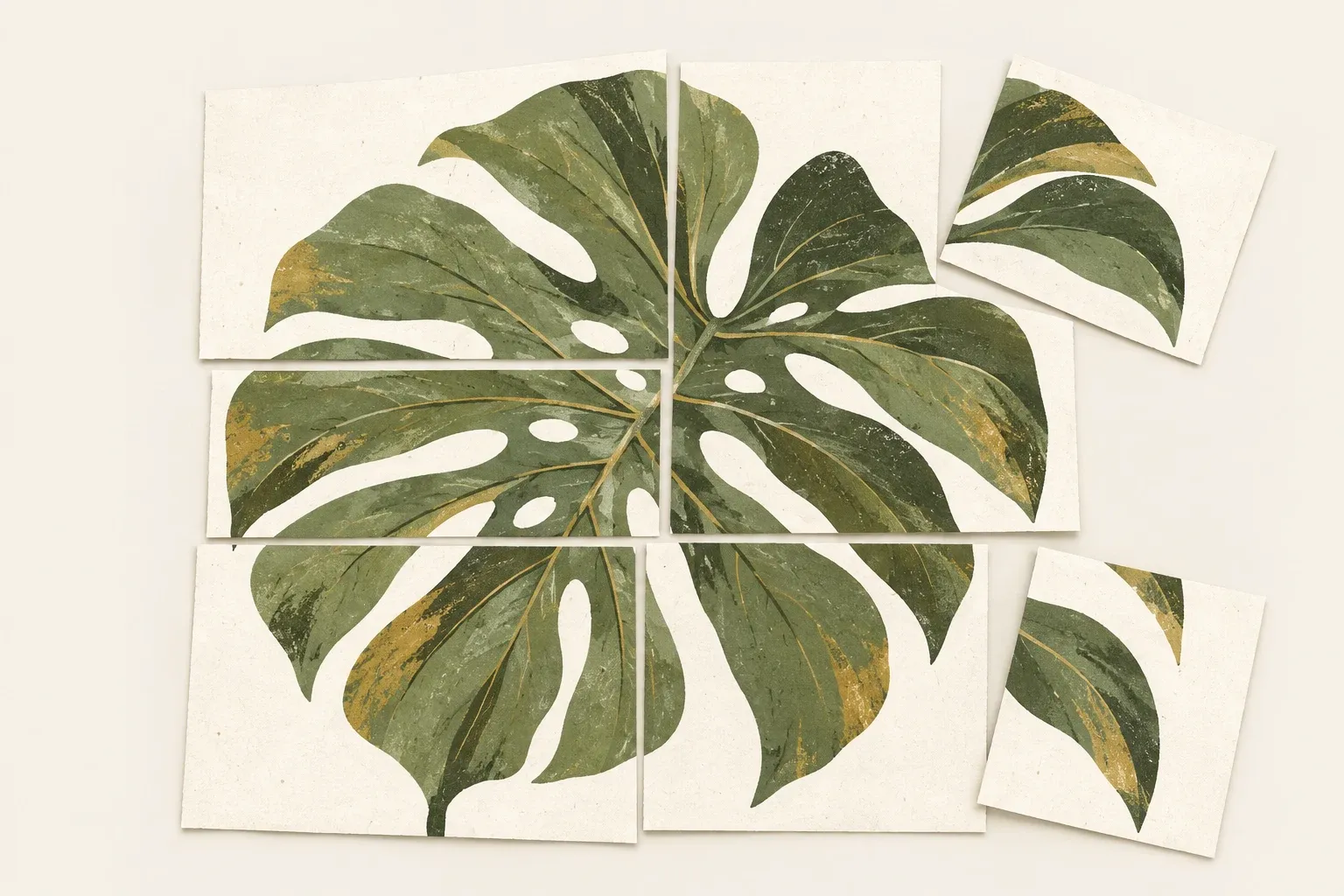
Set the poster size before selecting the number of sheets.
Open Poster tiling tool . Choose a PNG, JPEG, or WebP still image and enter width in centimeters. Height follows the original proportions without cropping or distortion. To set a specific height, crop the original in an image editor first.
Hypothetical example: A 3,000 × 2,000 px image set to 50 cm wide is about 33.3 cm high. With portrait A4, 10 mm margins, and 10 mm overlap, the image area per sheet is 190 × 277 mm. It needs 3 columns × 2 rows, or 6 sheets. Rotating paper or increasing margins may change the count.
How overlap and seam points join images
The overlap repeats the edge of the image on adjacent sheets so you can line them up before gluing or taping. Each sheet has row, column, and page numbers along its margin. Crosshair circles in the overlap help align two sheets, while thin lines mark the image area. Blank space on the final sheet is normal when the poster dimensions do not fit the paper exactly.
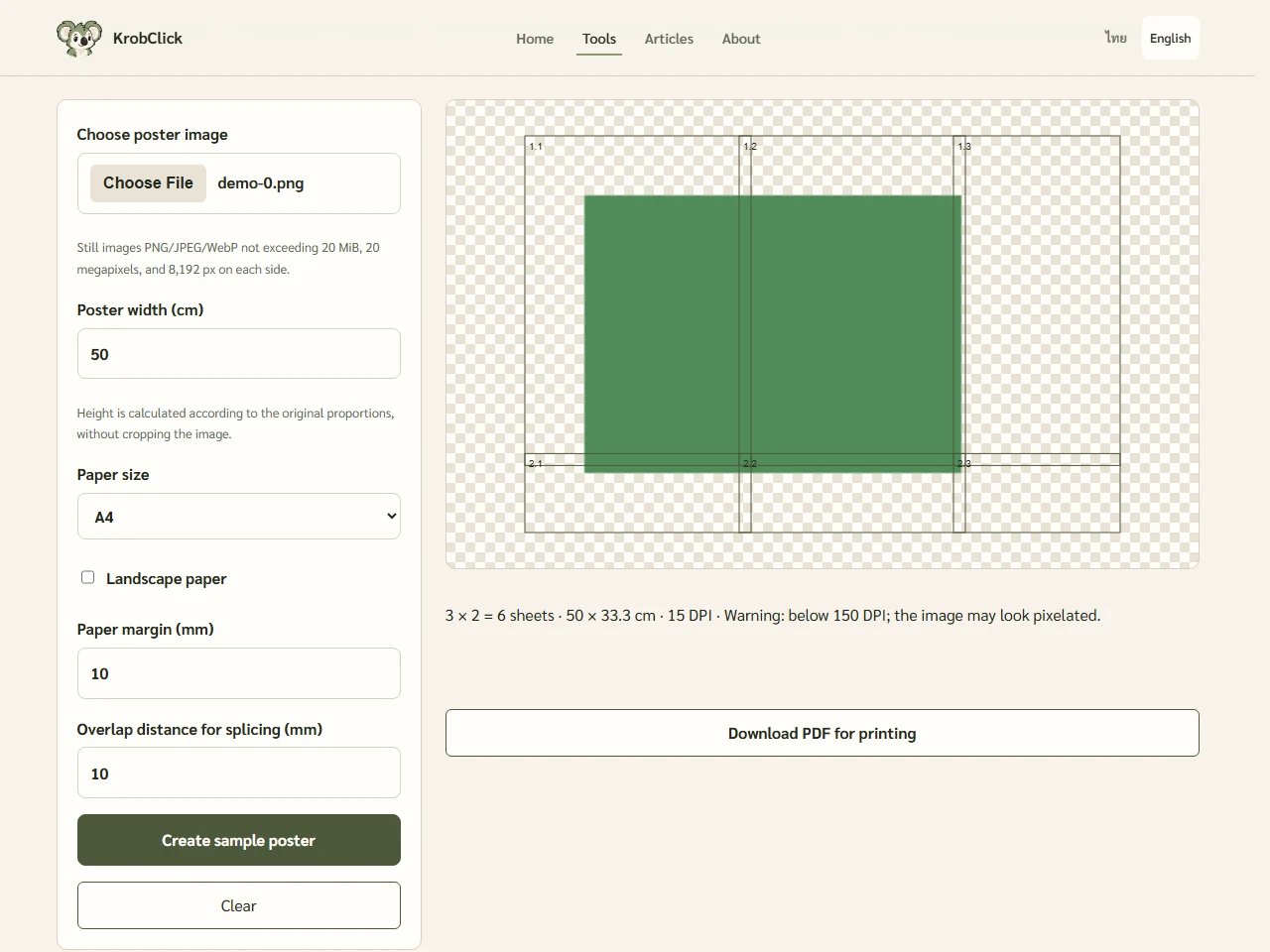
Check the DPI before enlarging the image.
Print resolution is the horizontal pixel count divided by width in inches. A 3,000 px image printed 50 cm wide has about 152 DPI; at 100 cm wide it has about 76 DPI, with no additional detail. The tool warns below 150 DPI. Small text may need higher resolution, while posters viewed from farther away may work at lower values.
Try printing one sheet at 100%.
- Select “Create preview”, check proportions and sheet count, then download the PDF.
- Match paper size and orientation to the file, select Actual Size or 100%, and disable Fit to Page and additional poster tiling in the PDF reader
- Print one sheet first and check for clipped edges and correct physical dimensions before printing the full set.
- Arrange by row and column, trim the overlapping edge, and compare overlap and alignment marks before joining
Accepts images up to 20 MiB, 20 million pixels, and 8,192 px per side, with a maximum of 100 sheets per job. Files are processed in the browser. For one image per PDF page instead of a tiled poster, read the Guide to combining images into PDF
Sources and verification methods
The sample dimensions follow the stated settings. The 150 DPI warning is a tool threshold, not a guarantee of print quality.