
How to use KrobClick PDF Editor: organize pages and save your PDF
If your PDF has pages in the wrong order, sideways pages, or unwanted pages, keep the original and work on a copy. This guide takes you from opening the file to checking your download, and explains when browser recovery can restore your work.
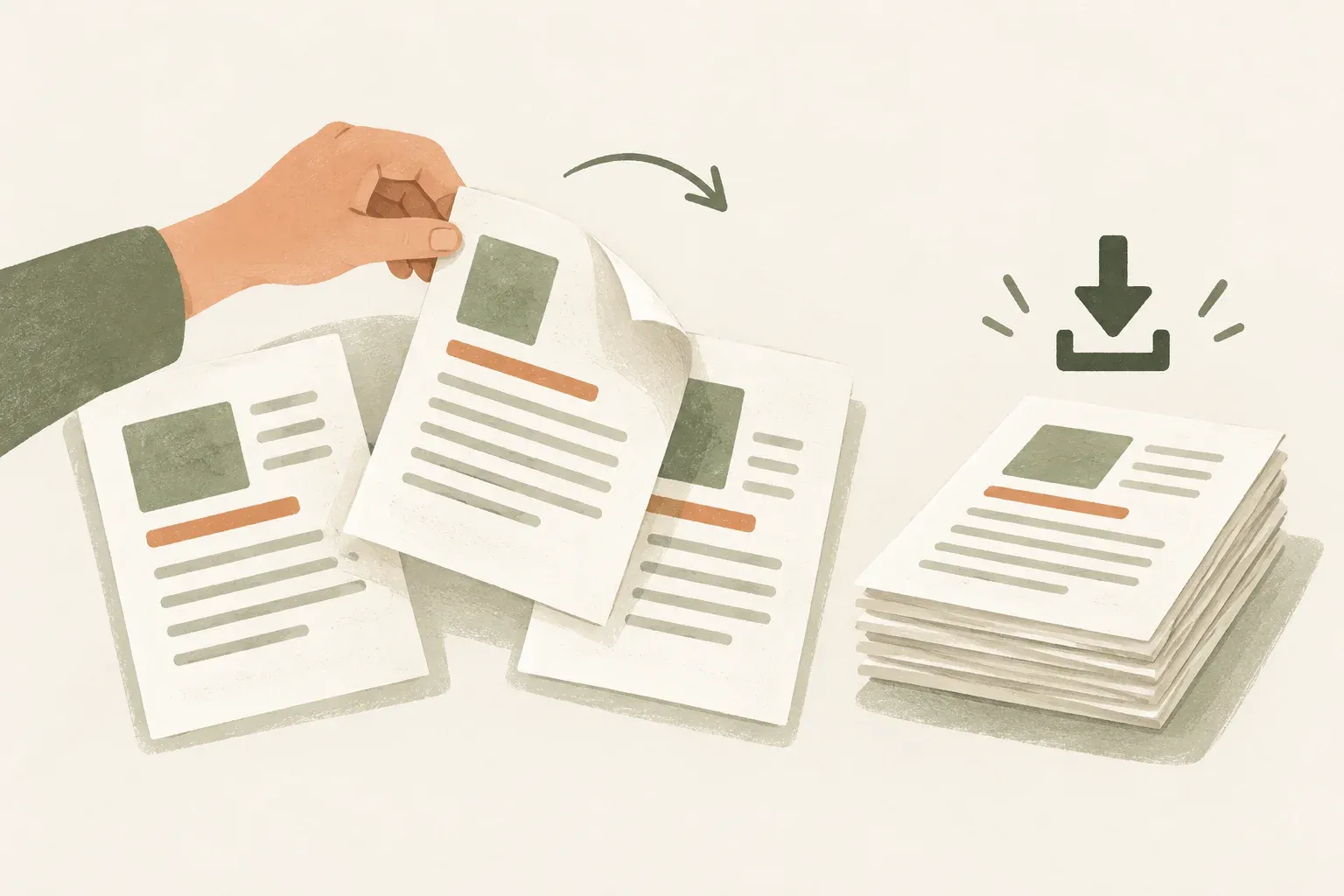
Open a file and find Organize pages
Open PDF Editor on a computer, wait for it to load, and choose Open to select a local PDF. Once the document appears, choose Organize pages in the tools panel. If the panel is closed, open All tools first.
Reorder, rotate, and delete pages, then check the result
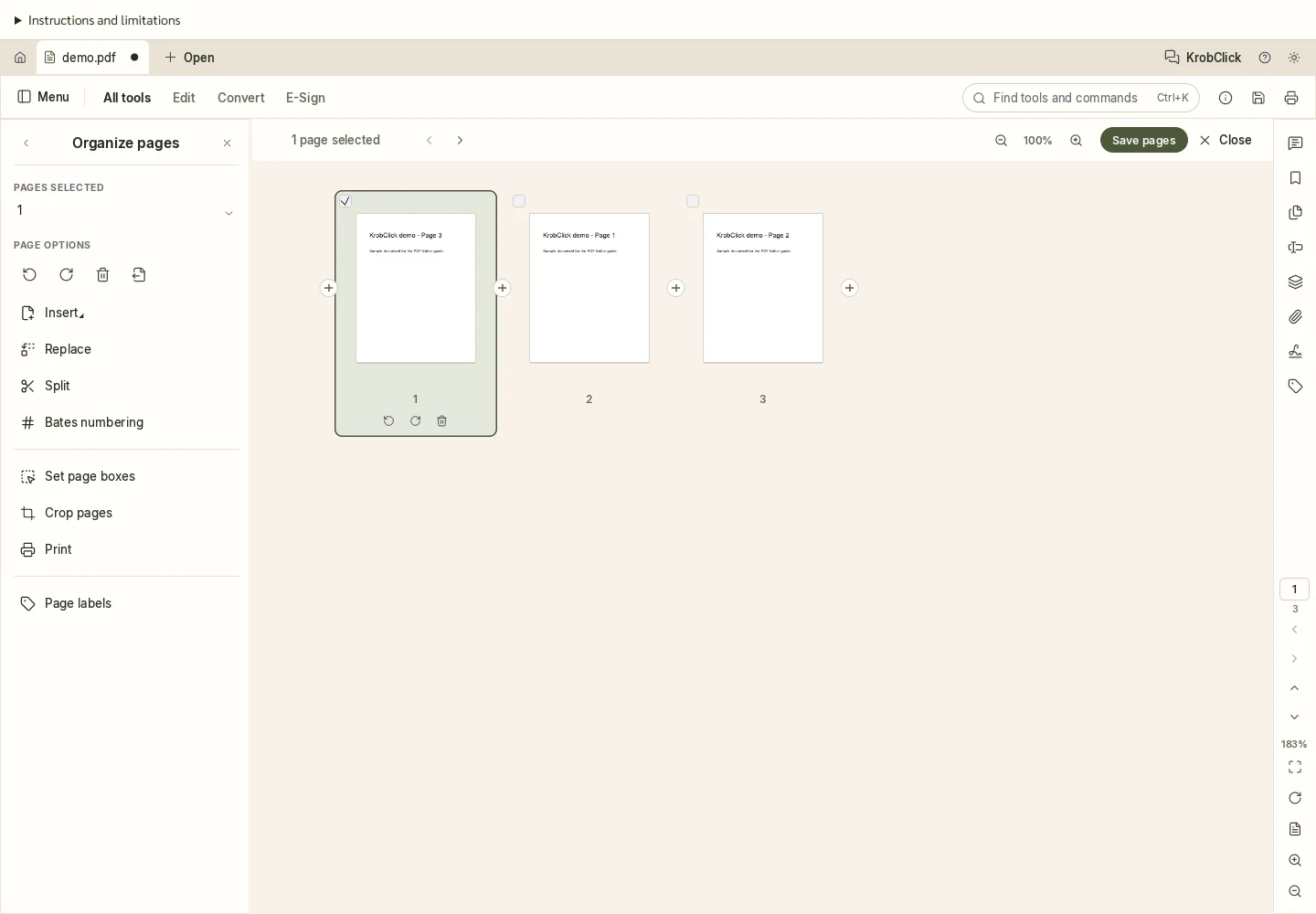
In Organize pages, check the page numbers and thumbnails before selecting pages. Drag thumbnails to change their order, rotate pages that face the wrong way, and delete only unwanted pages. When selecting several pages, check the selection before applying a command, as it may affect every selected page.
The editor is adapted from PDFCraft v0.13.0 (MIT OR Apache-2.0). Read the program’s Licenses and credits before use.
Say you need to send page 3 followed by page 1 from a three-page PDF. Drag page 3 to the front, then click the center of the original page 2 thumbnail to select that page alone. Check the thumbnail before deleting it, since the page numbers can change when you reorder them.
When you finish arranging the pages, click Save pages at the top right of the Organize pages panel. Your browser will download the edited PDF.
Download the PDF and open it to check
From the document view, click the disk icon at the top to download the PDF, or press Ctrl+S on Windows. Open the downloaded file in a PDF reader and check the page count, order, orientation, and content you plan to send. Keep the original until you finish checking.
To print, click the printer icon at the top, choose the pages and paper size, then click Print to open your browser’s print dialog.
How browser autosave differs from downloading
The editor automatically saves your work in the site’s storage within the browser so you can resume later. This saved copy is not a PDF in your Downloads folder. To submit the document or keep a backup file, download it yourself.
When you reopen the editor in the same browser on the same device, it automatically restores the latest saved workspace: documents, edits, current page, zoom, and active tab. Undo history is not restored. Approximately the last two seconds of work may not yet be saved, so download a backup before closing.
Recovery supports up to 32 files and 100 MB in total, excluding workspaces containing password-protected files. Only one tab can autosave. A warning appears if saving or recovery fails. To remove recovery copies, clear the site’s data in your browser settings. This also removes work saved by other tools on the same site. Private browsing or automatic browser cleanup may remove the copies.
File limits, small screens, and limitations
You can select PDFs up to 50 MB per file and 100 MB per selection. Files are processed in the browser without uploading. Cached program assets are separate from recovery copies. These stay on the device and do not sync to other devices. If autosave fails, download a backup as prompted.
The workspace has a minimum size of 1280 × 720 pixels. On a phone, swipe left or right to move across the editor, swipe up or down over a document to scroll it, tap buttons to use them, and spread or pinch two fingers to zoom the page. Use a computer for dragging objects or continuous drawing. On a computer, you can still use page scrollbars and the browser zoom menu. Browser zoom is separate from document zoom inside the editor. If startup fails, choose Retry loading and keep your original file.
Some beta commands and screen reader workflows still need testing. If you export a PDF to Word or PowerPoint, open the file and check the text and layout before using it. If you redact sensitive information, follow the guide below to check the resulting file before sharing it.
If you cannot search a scanned PDF, choose Scan & OCR, then Recognize text. Select the language that matches the document. The editor recognizes Thai and English in your browser, but skips any entire page that already contains text. If no new text can be added, there may be no result to download. Keep the original and try another tool suited to the file. If there is a result, the editor opens it as a PDF in another tab. Save it to download, then check searchable words and numbers against the original image.
To create a PDF from images, use Merge images into PDF . To export each page as an image, use PDF to images . Read the separate guidance for reducing PDF size , OCR , and removing sensitive data .
Sources
Page organization, download, and recovery were checked in the local development version of PDF Editor based on PDFCraft v0.13.0 on Chromium on 27 October 2026, using a self-created sample document. This does not validate every command or file.