
How to reduce a PDF to 2 MB or less before submitting it
If an upload form says your PDF exceeds 2 MB, check what you have on hand. The steps depend on whether you only have the PDF or still have the source files. Open the finished PDF every time before submitting it.
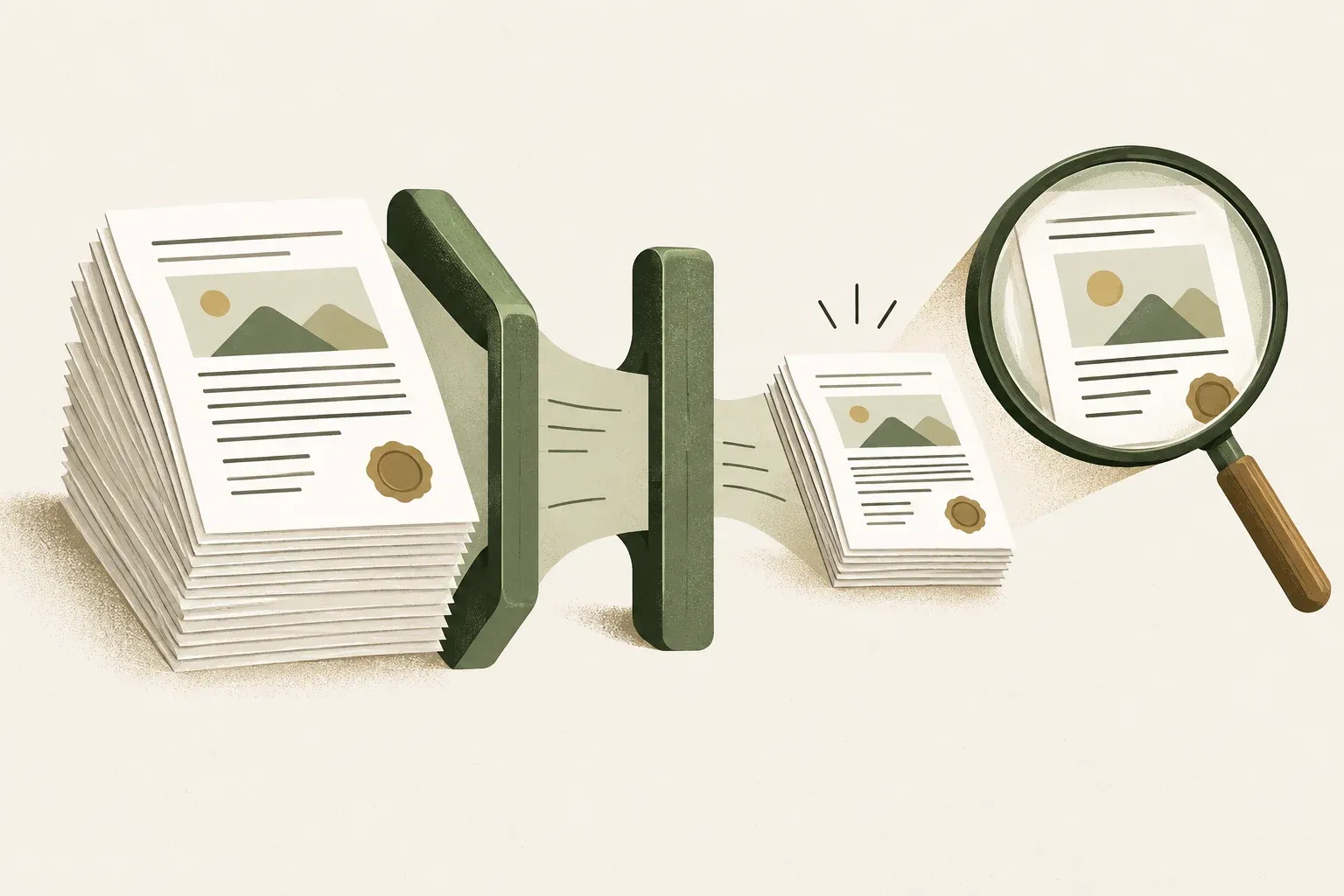
If you only have the PDF, compress a copy
Keep the original and use Reduce File Size or Optimize PDF in a PDF app you trust. Save a separate copy. Check that searchable text still works if it did in the original, and make sure images and stamps are legible.
KrobClick PDF Editor (English) can organize pages and download a new file. Deleting or selecting pages does not guarantee the file will meet the required size. Check the actual downloaded file’s size and readability. If it is still too large, reduce the original images or use an Optimize PDF tool whose results you can verify.
Avoid unnecessarily rendering every page to images and rebuilding a PDF: text becomes unsearchable and unselectable, and screen readers may lose access. If needed for scanned documents, consider OCR and review recognition errors.
If you have the original images, create a new PDF
KrobClick’s Image to PDF tool takes image files to create a new PDF. If you only have the PDF, use the steps in the previous section to compress a copy.
The tool draws each image on a white background and encodes it as JPEG before adding it to the PDF, even when the source is PNG or SVG. Transparent areas become white, and vector images are rasterized. JPEG compression can blur text or fine lines, even at high quality. Keep the original and check the result before sending it. If you need to preserve transparency or vector graphics, choose a PDF creation method that supports them.
- Open Images to PDF tool and choose Select images. The tool accepts still images in JPG, PNG, WebP and SVG formats.
- Put the images in page order, then lower the Image quality setting in steps from its default of 90%.
- Click the PDF button that shows the page count, such as Create a 3-page PDF, and check the downloaded file’s size. If it is still too large, lower the quality again or resize the source images before creating another PDF.
If the PDF is still too large after lowering quality and your source images are PNG, JPEG or WebP, open Image converter & resizer and choose the files. Open ‘Resize and set a file size target (optional)’ to set a maximum width or height. The tool keeps the aspect ratio and does not enlarge smaller images. Download the converted images and use them to create the PDF again.
The tool accepts still images only, not SVG input. Each image must be no larger than 20 MiB or 20 million pixels, with neither side exceeding 8,192 px. Each batch can contain up to 20 images and 60 MiB in total.
If you set a file size target, it applies to each output image, not the whole PDF, and may not be reached. For JPEG or WebP output, the tool tries lowering quality; it does not lower PNG output quality to meet the target. Check the final PDF’s size and readability again.
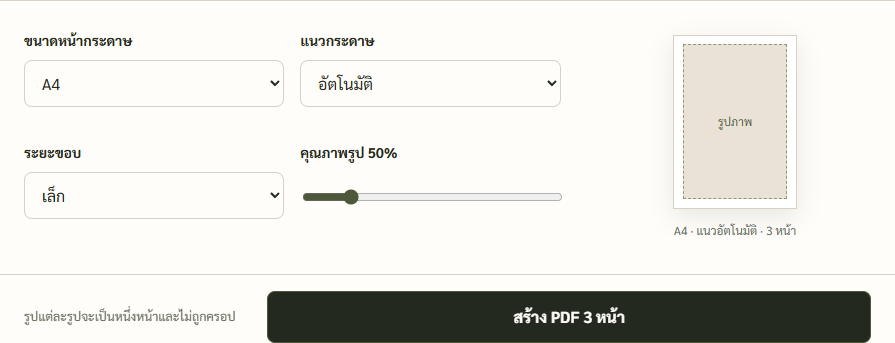
In Chrome, three sample document images produced a 2.94 MB PDF at 70% and a 1.82 MB PDF at 50%. Both files kept all three pages. The right setting for your file depends on the source images and how much detail you need to keep.
If you have the original Word or PowerPoint file, resize the images in the document and export it again. Text remains selectable and searchable when the export preserves it as text.
Open the downloaded file and check its size
For a 2 MB limit, check that the final file is at most 2,000,000 bytes or leave a little room, for example by aiming for 1.8–1.9 MB. A rounded size label can hide a small overage.
- Open every page, not just the first
- Zoom in on numbers, card numbers, signatures, stamps, and QR Codes.
- Test searching and copying text when the receiving system requires a text layer.
- Check page direction, page order, and file names according to specifications.
Read more
- Adobe Acrobat: Reduce PDF file size
- MDN: HTMLCanvasElement.toBlob and image quality
- MDN: Image file type and format guide
Keep originals and inspect the output at its actual display size. Reducing file size may lose image detail, text, signatures or metadata. Organizing pages does not guarantee that the destination’s size limit will be met.