
How to create a LINE add-friend QR code
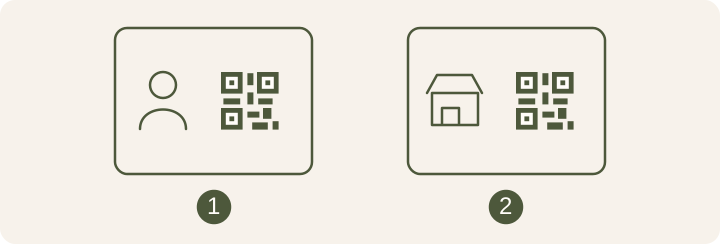
Friends may want to add your personal account. Customers need the QR code for your store’s account. Choose the account for your audience and test where the code leads before sharing or printing it.
Use a personal or business account?
A personal account works for friends. For a storefront sign, start with the LINE Official Account that handles customer messages. Picture a first-time visitor scanning the sign. The name and profile image should match the account they expect to find.
Show your add-friend QR code in LINE
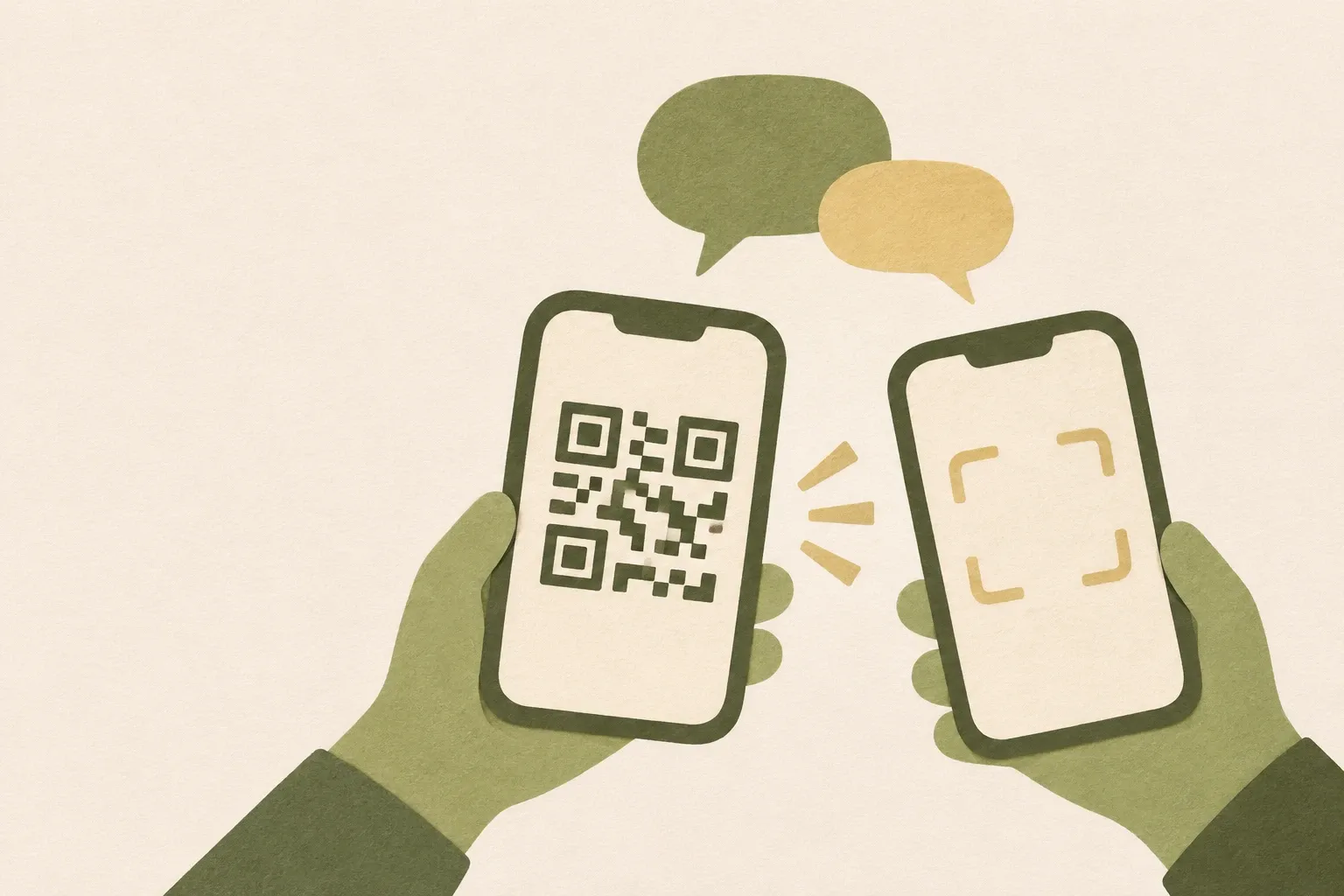
On your main phone in Japan, Taiwan, or Thailand, open Chats, tap the plus icon at the top, then choose My QR code. Elsewhere, LINE’s instructions say to open Home or Chats, tap the scan icon beside the search box, then choose My QR code. Ask the other person to check the name and profile image before adding you.
If your screen uses a different layout, open LINE Help and choose the QR code instructions for your device. LINE lists separate steps for main and secondary devices.
See the device-specific steps in LINE Help
Download a LINE Official Account add-friend code
In the LINE Official Account Manager app, go to Home, open Gain friends, select QR code, and save it. On the web version of Manager, go to Home and Gain friends, then download the code displayed there. If you manage several accounts, confirm which one is selected before downloading.
Scan and verify the account before sharing
Ask someone who has not added the account to scan both the file and the printed sign. If the wrong name appears, download the code from the intended account and replace the image in the layout. When sending to someone reading on the same phone, use LINE’s add-friend link if available. Share your personal QR only with people you are happy to have add you.
| What to test | How to check |
|---|---|
| The destination account | Ask someone who has not added the account to scan and check the name and profile picture. |
| The finished sign | Scan after placing the image in the design and again after printing. Check for a clear margin and glare. |
| The code opens the wrong account | Download a new code from the correct account and replace the image on the sign. |
Plan QR code signs for a storefront