
Convert HEIC to JPG before using KrobClick: iPhone, Mac, and Windows instructions
An iPhone photo may open on the phone but be rejected by an application form that requires JPG. Check the file’s actual format; it may be HEIC.
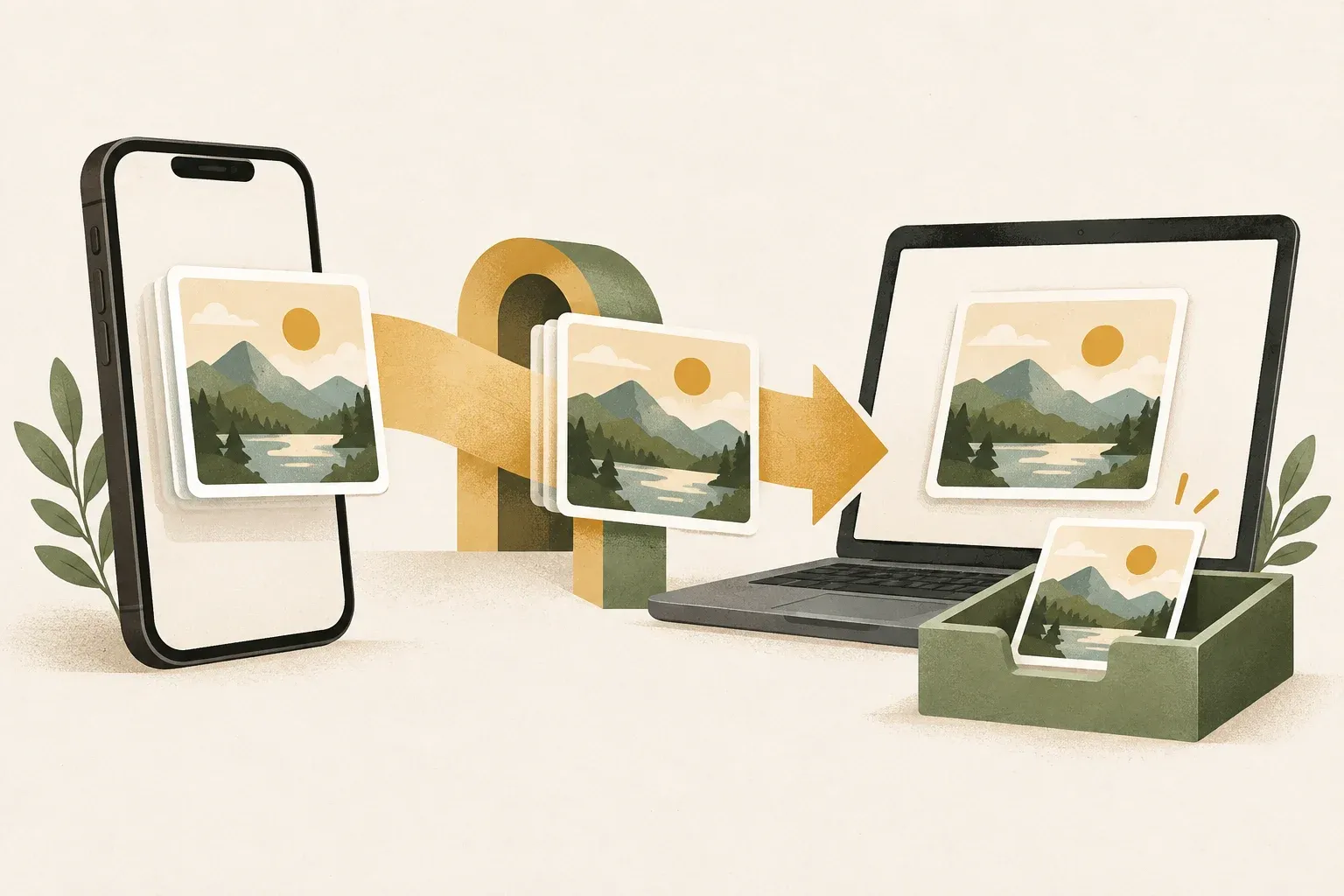
HEIC is smaller, but JPG is more broadly compatible.
If the destination requires JPG, export a JPEG copy on your device and check it before sending. Retain the HEIC original until delivery is complete, since conversion can change detail, colors, and metadata.
HEIC is a common extension for images in HEIF containers, used on newer Apple devices for better compression than JPEG at similar quality. Some websites, older programs, and document systems still accept only JPG or PNG.
Renaming .heic to .jpg does not convert the image. Conversion requires decoding HEIF and encoding JPEG, which can change quality, color, and metadata.
Quick iPhone method: choose the format before sharing
In Photos, open the image, tap Share, then Options, and select Most Compatible . At supported destinations, sharing may convert the image to JPEG. This suits a few photos without permanently changing camera settings.
The same options page can disable location data before sharing. If coordinates are unnecessary, check the destination file again: sharing methods and apps affect the received format.
Set new images to be JPG from the moment they are taken.
Go to Settings → Camera → Formats, then choose Most Compatible . New photos use JPEG and videos use a more widely supported format. This changes future captures, not existing HEIC files, and may use more storage than High Efficiency.
If saving space matters and you mainly use Apple devices, you can keep High Efficiency enabled and convert only the images you need to send to other systems.
Convert on Mac with Photos or Preview
- Open the image in Photos or Preview
- Choose File → Export
- Choose JPEG and set quality for the intended use
- Save as a new file without overwriting the original.
For document images, inspect text, thin lines, and QR codes at their actual display size. For general website uploads, medium-to-high quality often offers a better balance than choosing the lowest setting for a smaller file.
Windows may need to install the HEIF extension.
Microsoft documentation for Photos on Windows 10 explains that viewing these files may require both HEIF Image Extensions and HEVC Video Extensions, including for still images. Check the Photos message, Windows version, and Microsoft Store requirements for the device. Once the image opens, export a new JPEG copy in a supported application.
Alternatively, connect the iPhone and import photos with compatible-format conversion. To retain original HEIC files, select Keep Originals in the iPhone's Photos settings before transferring, then convert copies on your computer.
Be wary of conversion sites when the images contain personal information.
Many HEIC conversion websites upload photos to servers. Read retention and deletion policies, especially for identity cards, health records, or photos with home coordinates. If your device already converts them, offline methods reduce outgoing data.
KrobClick image converter accepts PNG, JPEG, and WebP, so convert HEIC on your device first. It exports PNG, JPEG, WebP, or SVG and adjusts quality for JPEG/WebP. Proportional resizing works across output formats; SVG contains raster pixels rather than vector paths. For a required size, open KrobClick’s resize options and set maximum width and height. Read How to distinguish dimensionality reduction from file compression
Hypothetical example: The system receives a JPG no larger than 2 MB and no wider than 2,000 pixels, but the output image is still 4,032 pixels wide. Even if the quality is reduced to a file less than 2 MB, it still does not meet the dimension requirements. The width must be reduced with a supported program, maintaining the proportions, and then checking both the file type, byte count, and pixel count of the final copy.
Check 4 things before deleting originals
- The dimensions and resolution of JPG match the final job.
- Skin tones, skies, and gradients do not change abnormally
- Date, camera, and location data are retained or removed as intended
- The file actually opens in the intended website or application
Keep HEIC originals at least until successful delivery. JPEG conversion is lossy, and repeated exports can further reduce quality.
Sources
- Apple Support: Using HEIF or HEVC media on Apple devices
- Apple Support: Share photos and adjust file format on iPhone
- Microsoft Support: HEIF and HEVC files in Photos
- MDN: Image file type and format guide
System and menus may vary according to device model and software version. Always keep the original HEIC file and check the color, resolution, date, and location information of the JPG file before deleting the original.