
Fix garbled Thai CSV in Excel and preserve leading zeros: KrobClick guide
CSV files from other systems may show garbled Thai in Excel and lose leading zeros in product codes. This article separates symptoms and checks them step by step before saving.

Garbled Thai CSV text often means the program's character encoding does not match the file
CSV is a text file with column delimiters, rather than an Excel workbook such as .xlsx . If Thai text saved as UTF-8 is read using another encoding, it may appear as garbled symbols. First try importing through Data → Get Data → From Text/CSV and select the encoding that matches the source. Avoid repeatedly double-clicking and overwriting the file.
Microsoft Support explains that Excel can open UTF-8 CSV files with a BOM where supported, and recommends importing through Power Query for files without one. Garbled Thai text does not, by itself, prove the file uses UTF-8.
Distinguish garbled text, misplaced columns, and changed identifiers
| Symptom | Possible causes to check | First approach |
|---|---|---|
| Thai text is garbled | Incorrect input encoding | Re-import and select encoding. |
| All data piled up in one column. | The comma, semicolon, or tab separator doesn't match. | Choose the delimiter in preview |
| Code 00123 becomes 123 | Excel converts codes to numbers. | Set the column to Text before loading. |
If an encoding-aware text editor displays Thai correctly but Excel does not, check the import settings. If an incorrectly opened file was saved over the original, return to an untouched copy where possible; some information may already have been changed or lost.
Steps to import Thai language CSV into Excel without destroying the original
- Back up the CSV and open a blank Excel workbook instead of double-clicking the file.
- Go to the tab Data → Get Data → From File → From Text/CSV (Menu names may vary by version and language), then select the file
- Inspect the preview. If Thai text is garbled, set File Origin or encoding to UTF-8 when the file is known to be UTF-8. If it is still incorrect, check the source system's encoding before trying others.
- Check the delimiter to separate columns correctly, such as commas or semicolons, and then use Transform Data if you need to set data types for individual columns.
- Set postal codes, product codes, reference numbers, and other identifiers with leading zeros to Text before loading the sheet, so Excel does not interpret them as quantities.
- Examine multiple rows of sample data, including Thai language, numbers, dates, and columns with commas within the text. Then save the result as
.xlsxto preserve assigned data types and formatting
Microsoft: Keeping leading zeros and large numbers warns that Excel may remove leading zeros and display long numbers in scientific notation. Set identifier columns to Text during import.
If Power Query adds a Changed Type step that converts identifiers to numbers, edit or remove it before setting the source column to Text. Converting 123 to text afterward does not restore missing zeros or digits lost through rounding.
What is the difference between UTF-8 and UTF-8 BOM?
UTF-8 is a character encoding; a BOM (Byte Order Mark) at the start of a UTF-8 file is the byte sequence EF BB BF which some programs use to identify the encoding, as explained by the Unicode Consortium . UTF-8 does not require a BOM to be valid, and adding one does not itself correct Thai text.
Saving as UTF-8 with BOM may help Excel versions or systems that expect a BOM open the file correctly. Some import systems and file readers require UTF-8 without BOM. Check the destination’s requirements before choosing how to save, rather than adding a BOM to every file.
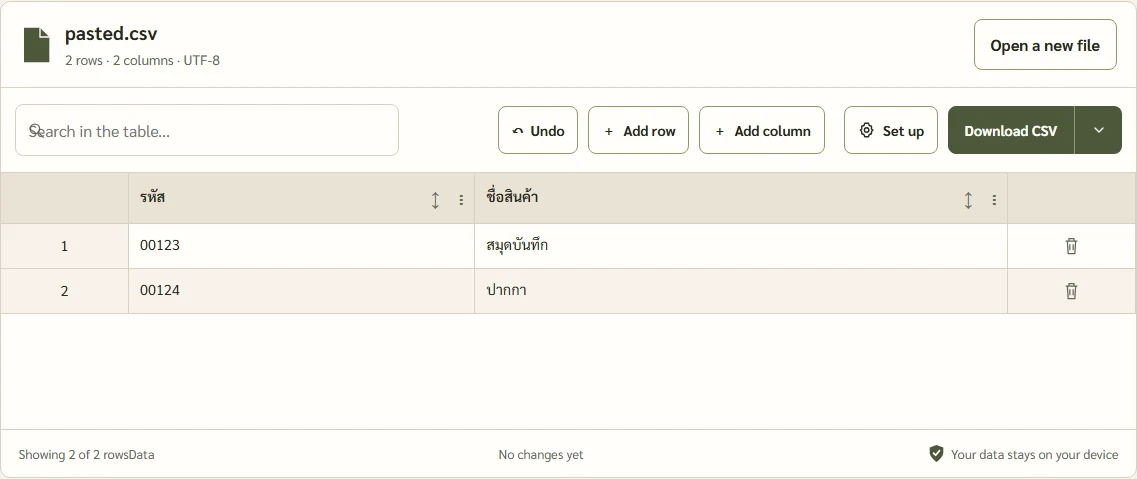
Hypothetical example: Two-column CSV that requires both language and code to be checked.
Suppose the original file contains the following text. The numbers are identifiers, not quantities:
รหัส,ชื่อสินค้า
00123,สมุดบันทึก
00124,ปากกา
The intended result has two columns, “Code” and “Product name”. The code 00123 must retain both leading zeros, and product names must remain readable in Thai. A result of “123” is still incorrect even if the Thai text looks right. This is an explanatory example, not a test of a particular Excel version.
Precautions when saving back to CSV
- CSV does not preserve fonts, colors, multiple sheets, or workbook data types. Formula cells are exported as displayed values, not workbook formulas. If you need to continue editing, also keep an
.xlsxcopy. - Saving with the wrong encoding can lose text. Keep the source and reopen the exported file to check it.
- Follow the destination system’s delimiter and encoding requirements. UTF-8 with BOM is not suitable for every importer.
- Data that contains commas in a single field must be enclosed in quotation marks according to the CSV format used, or the column may shift, even if the encoding is correct.
Check three things before using CSV: language, columns, and data types.
If Thai text in a CSV looks garbled, keep the original file. Try importing with the encoding that matches the source, then check column delimiters and the data types of codes with leading zeros. This lets you check both unreadable text and values the program may have converted incorrectly without warning.
Sources
- Microsoft Support: Opening CSV UTF-8 files correctly in Excel
- Microsoft Support: Keeping leading zeros and large numbers
- Unicode Consortium: UTF-8, UTF-16, UTF-32 and BOM FAQ
Based on developer documentation and standards, without testing a specific Excel version. Menus may differ by operating system and version. Keep the original before importing or overwriting.