
Convert PDF to images with KrobClick: choose formats and resolution
To send PDF pages as images, first select the pages you need. Then choose a format and resolution that preserve readable text without creating unnecessarily large files.
Produces full-page images, not original embedded pictures
PDF to images tool renders selected PDF pages as new images containing their text, tables, and pictures. It is suitable when the recipient needs an image of an entire page. It does not extract original embedded photographs; the result includes the page layout and may have a different resolution from those photographs.
The output has no searchable or selectable text layer and the tool does not perform OCR. Keep the original PDF when the recipient needs text search, form fields, or digital-signature verification. Read Scanned PDFs and OCR when you need searchable text.
Select pages and configure settings step by step
- Open the tool and select one PDF. The page specifies a maximum of 100 MB and 500 pages. Unlock password-protected files first.
- Wait for the thumbnail, select the desired page, or use “Select All” and check the selection status again.
- Choose an image format, start at the default 144 DPI, then adjust according to output readability
- For formats with a quality slider, start at 90%. This is a compression setting, not a guarantee of 90% sharpness.
- Select “Download selected pages” to export your selection, or download all pages when you need the whole document.
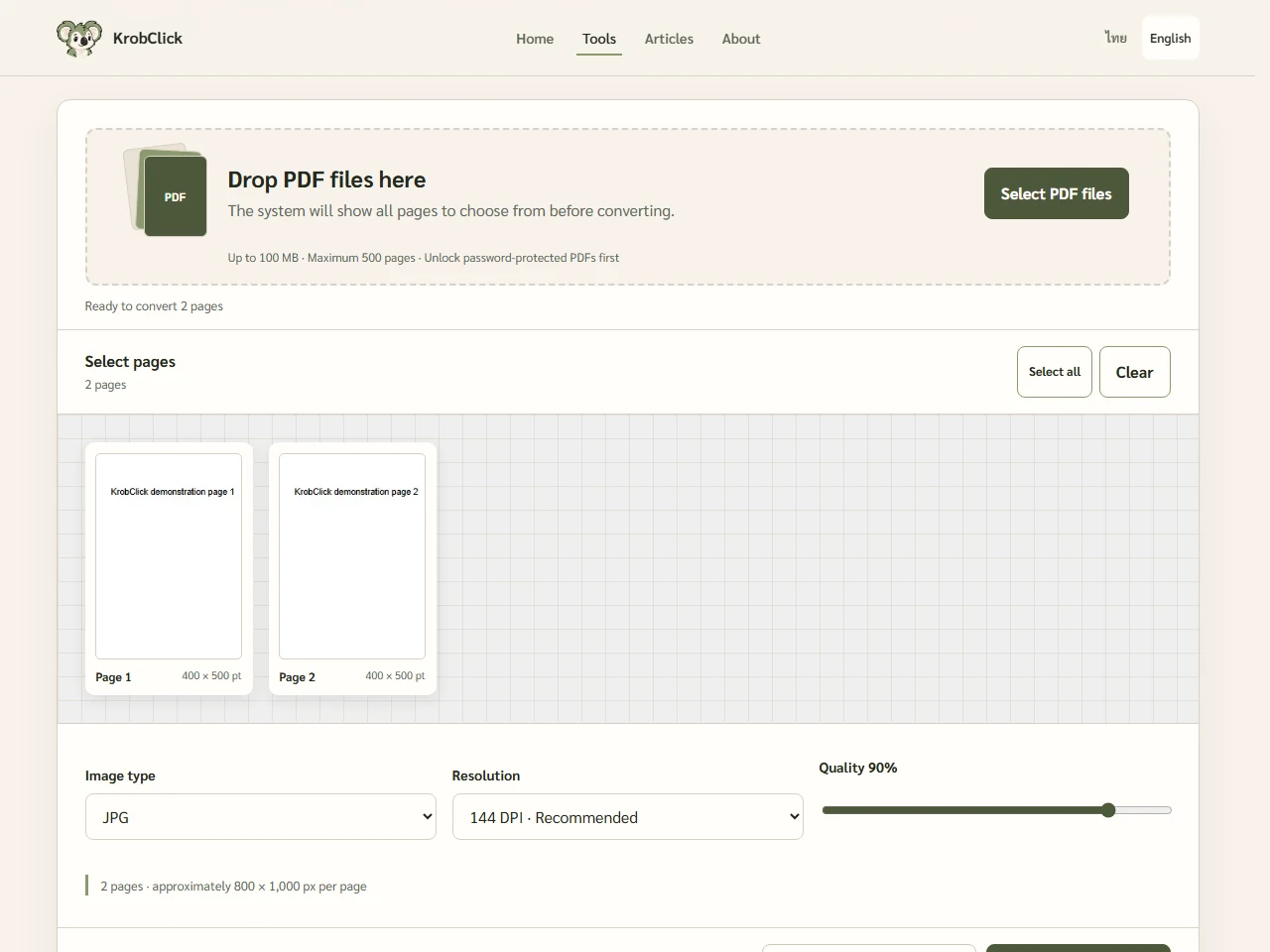
For example, if a document has two pages and only page two is needed, select it and download selected pages. A one-page export produces an image directly; multiple pages produce a ZIP. Extract it first if the destination accepts only images. Do not rename ZIP to JPG.
What is the difference between JPG PNG WebP and SVG?
| File format | Ideal starting point | Things to know |
|---|---|---|
| JPG | The recipient accepts JPG, or you want to adjust compression | Compression may introduce artifacts around small text |
| PNG | Pages with text, tables, and fine lines | The file may be larger; compare the actual output. |
| WebP | The recipient accepts WebP and you want to compare its size with JPG | Check the receiving system first; some destinations do not accept WebP. |
| SVG of this tool | The destination specifically requires an SVG container | Contains an embedded PNG of the page, without separate editable vector objects |
Available output formats depend on browser encoding support. This tool’s SVG differs from QR-generator SVG: the PDF page is rendered to pixels and embedded in an SVG container. Enlarging it adds no detail, and text cannot be edited as separate vector objects.
DPI increases resolution and memory load.
The tool offers 72, 144, and 216 DPI. Changing from 72 to 144 DPI doubles both the width and height, giving roughly four times as many pixels. File size does not necessarily increase by the same factor, because it also depends on the content, file format, and chosen quality.
For a 280 × 400 point demo document, 72 DPI produces 280 × 400 pixels and 144 DPI produces 560 × 800, using DPI ÷ 72. Higher DPI renders vector text more finely but cannot restore detail to blurry scans.
The tool also limits each page to 25 million pixels and each export batch to 120 million pixels. If it reports high memory use, select fewer pages or lower the DPI. A device can run out of memory before these software limits are reached.
Check downloaded files and troubleshoot common issues
Open the output and inspect page numbers, small text, tables, signatures, and QR codes at actual usage size. If text edges blur, try PNG or higher quality before always maximizing DPI. If the image exceeds upload limits, reduce DPI or adjust it further with Image converter and compressor
Original page numbers in filenames help verify selections; also reopen and check matching contents. If a PDF fails, try a reader to distinguish corruption, password protection, or a renamed non-PDF file. The tool does not repair corrupted PDFs.
Files are read and converted in-browser. Download before closing. To retain PDF format and only reorder or delete pages, use PDF Editor to organize pages while preserving PDF format.
Sources
KrobClick tool and code reviewed October 21, 2026 using nonsensitive demo text and documents. Screenshots show local development. Scope and limits may change; inspect output files or text before use.