
NotebookLM Workflow: Compare Sources and Verify Citations
Summarizing multiple documents may produce readable text without identifying newer versions or conflicts. This article uses a hypothetical workshop-planning task to show systematic questions and evidence checks.
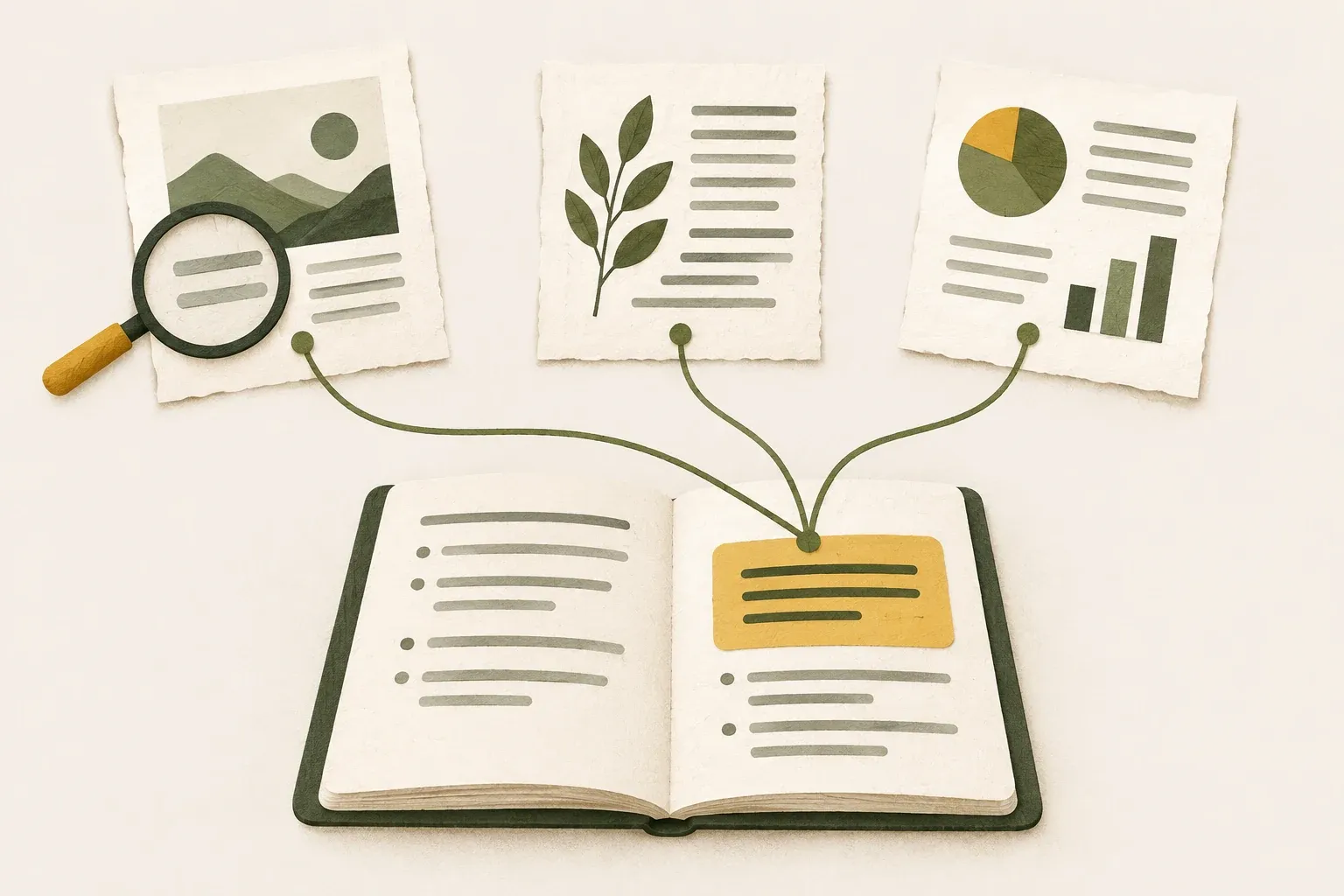
Start with the question to answer instead of summarizing everything
NotebookLM can be used to ask questions about selected sources, such as several manuals or a set of meeting documents. Define the question first, then choose the files so that answers can be checked against their evidence.
Product-name note as of October 14, 2026: The Google Help page linked from NotebookLM and reviewed for this article is titled Gemini Notebook This article retains the familiar name NotebookLM and focuses on source-based work rather than button positions or plan-specific entitlements.
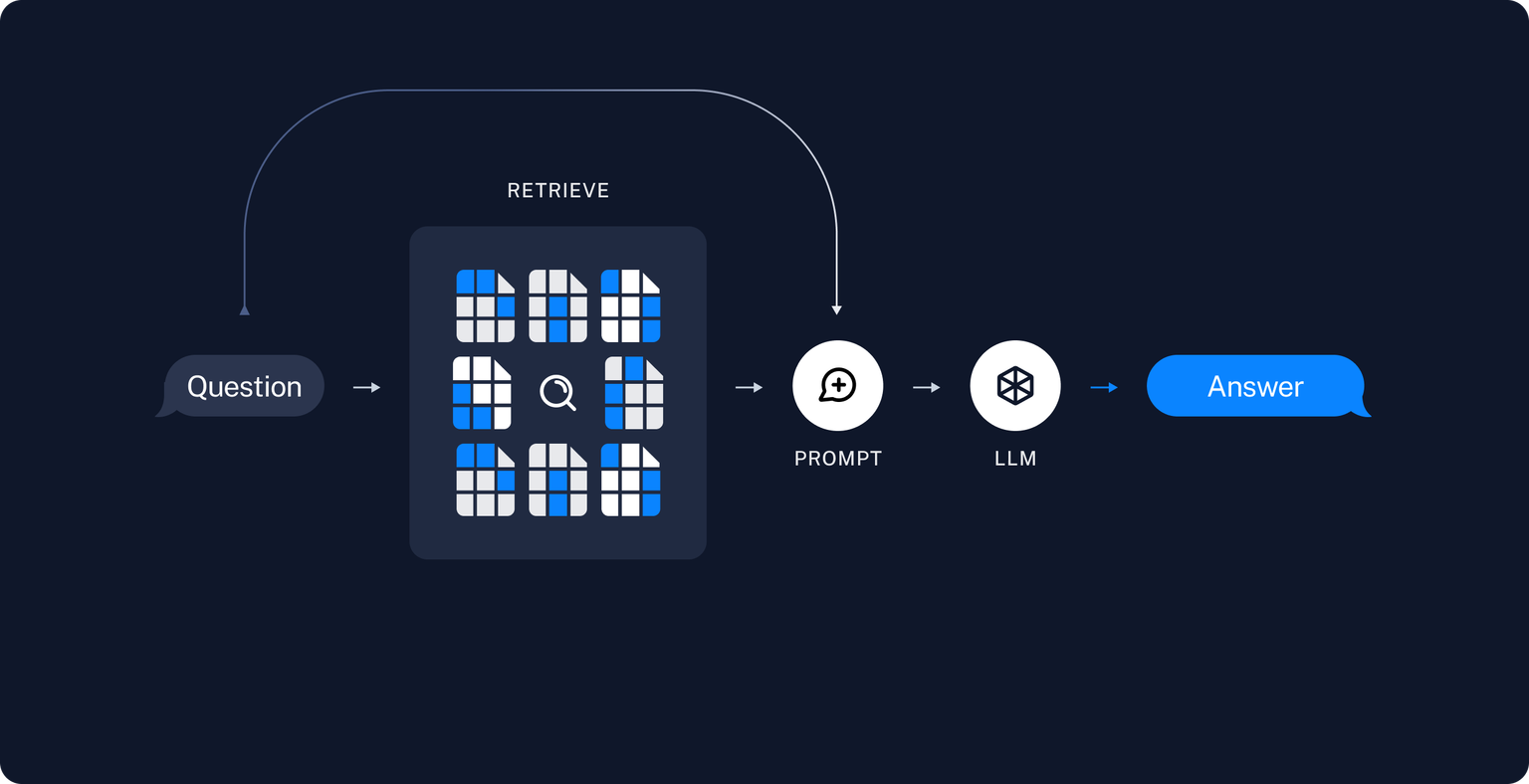
Google Help about using chat explains source selection and opening citations to the referenced passages. This article focuses on questions using selected sources. If your system has web search or additional operating modes, check whether answers use the same dataset or add sources; do not assume all modes share the same scope.
Make an inventory of your sources before you start asking questions.
List each file’s name, owner, date, version, and reason for inclusion. More files do not necessarily improve evidence: duplicates and outdated manuals can contain similar passages that are not interchangeable. Use distinct names such as “Draft schedule” and “Approved schedule.”
The following example is a hypothetical scenario for a workshop team. Not the actual document of KrobClick
| Sources | What it answers | What remains inconclusive |
|---|---|---|
| Approved schedule | Activity time and topic | Actual cost |
| Venue provider proposal | Items and conditions offered | Confirmation of booking or payment |
| Meeting notes before the plan change | Previously discussed reasoning and alternatives | Latest resolution if there is a newer document |
Check permissions before using documents, especially participant details, phone numbers, and confidential proposals. Google services are external systems, not KrobClick's browser-only file tools. Read account-specific data terms; do not assume personal and corporate policies match.
Use three passes: extract, compare, and identify gaps
The first round finds content: “From the approved schedule, identify activities requiring equipment, listing the activity, stated equipment, and supporting text. Write ‘not found’ if absent.” This limits scope and reveals gaps early.
Second round comparing documents: “Compare start times in the schedule and meeting notes, showing each text and document date. Do not decide which version governs.” Resolve conflicts through authorized confirmation and authoritative documents, not AI confidence.
Third round: Find things you don't know yet: “What information is needed to confirm readiness but missing from the selected sources? Separate documented facts from questions you propose.” Proposed questions are thinking aids, not evidence that those problems occurred.
The three-pass method is KrobClick's document-reading suggestion, not a product feature name. It also works with other systems supporting source selection and citation checking.
Check the citation to see if it supports the whole sentence or just part of it.
- Select important claims such as dates, times, scope, or cancellation conditions
- Open the citation and read the full text, including preceding lines and notes
- Make sure it is the desired document, version, and period. It's not a file with a similar name.
- Separate source-confirmed statements from AI inferences. If only half a sentence is supported, revise it.
- Record the results as “Verified / Conflict / Not Found” with their location in the original.
Hypothetically, the source says “The venue accommodates up to 40 people,” while the answer says “40 participants are confirmed.” A citation to capacity does not support registration confirmation; these are different facts.
For claims about PDF figures, inspect the original page image and units rather than relying only on extracted text. Read more checking methods in How can AI PDF summaries go wrong?
Do not assume sources always update to match the latest original
Guide to adding Google resources distinguishes import methods and source-type limitations. Before calling an answer current, check whether notebook files match the latest originals. If documents change, inspect that source type's update process. Do not assume every website or file syncs automatically.
Label notes, for example, “Checked against the schedule approved October 10; venue confirmation not yet received.” This clarifies readiness better than undated new summaries. Removing old sources reduces confusion, while retaining historical copies where team policy requires.
Keep a decision list with traceable evidence
For this hypothetical task, the reusable output should separate “Confirmed by documents,” “Conflicts,” “Questions for the task owner,” and “Team proposals.” Before turning it into an audio summary, diagram, or handout, check the source content: changing the format does not make the evidence more accurate.
Start with a few verifiable documents and clearly scoped questions, adding sources only as needed. Each answer should lead back to trustworthy reasoning, rather than aiming for the largest possible notebook.
Sources
Sources reviewed October 14, 2026, Thailand time. Thai examples and prompts are KrobClick proposals, not product tests. Features and settings vary by version/account. Check originals and outputs before real use.